

How to send artwork to a client for approval
Prepare the artwork, explain what needs checking, agree a deadline and record the decision on the right version. A practical guide to sending a client review link.
Written by the Aproova product team from the review flows we build and test in the application.
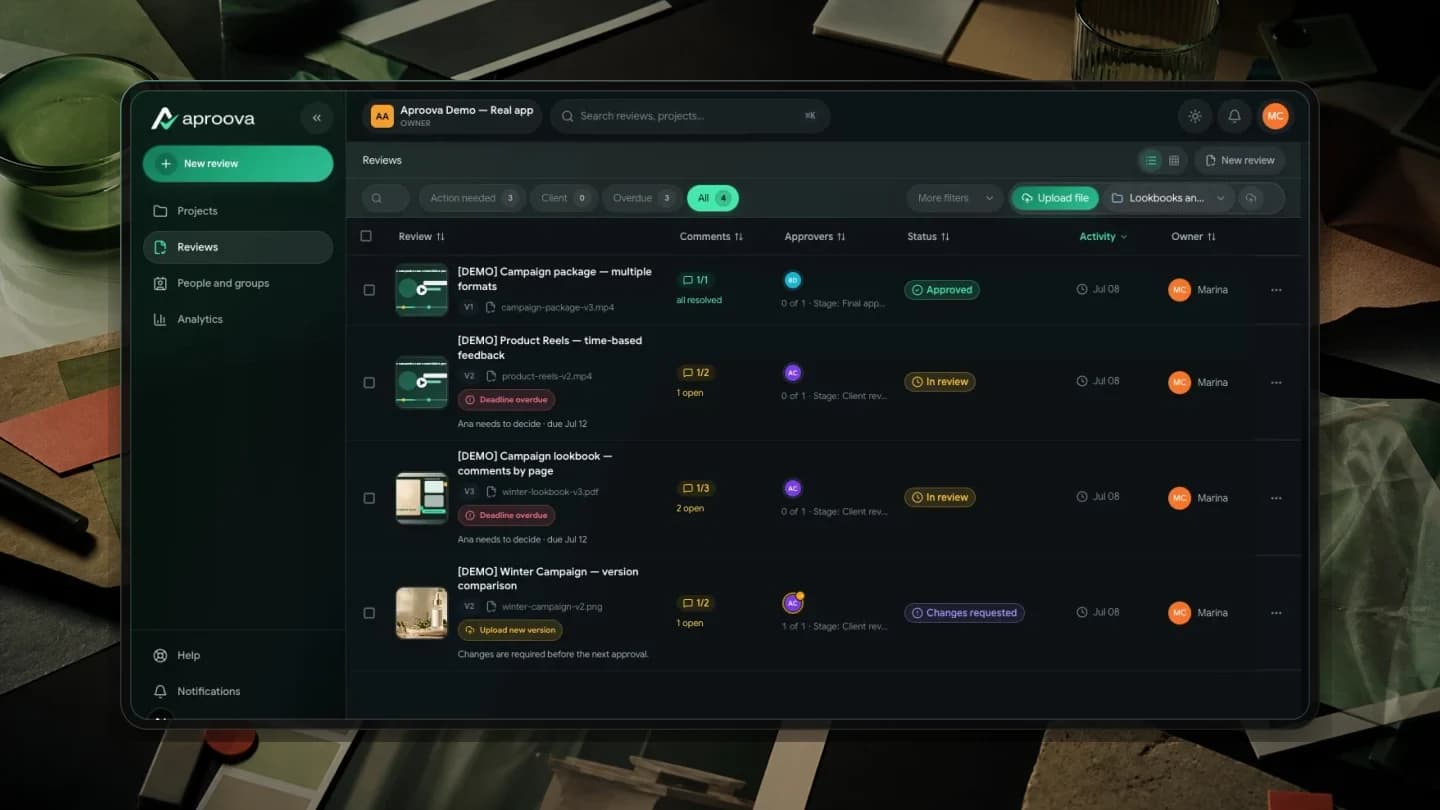
Artwork goes out in a message; the client replies with a voice note, two marked-up screenshots and a request to make the change discussed earlier. After several versions, the team can lose track of which file was approved and send the wrong one to production.
A conversation can help resolve a question, but messages alone do not reliably connect feedback to a file and version. An image sent as a photo may lose quality, and the approval can end up far from the asset it refers to.
This guide covers the whole handoff: what to send, how to ask for feedback and how to record the decision. Test the link and access as well as the file.
Prepare the context before sending the file
Identify the asset, its channel and purpose. State exactly what the client should check: the copy, the photo, the price or the whole layout. Include the response deadline so the recipient knows what decision is needed and when.
For example: ‘Please approve this version of the Mother's Day post by Thursday, focusing on the price and required wording.’ That is more specific than ‘Here's the artwork.’ Agree what happens if the client cannot meet the deadline instead of treating silence as approval.
Share a review link and check access
A review link keeps the file and feedback in the browser, on desktop or mobile. Access depends on how the review was shared: the client may need to sign in or complete the requested identity confirmation. Do not promise that every review opens without an account.
In Aproova, share the review using the appropriate access and permissions. A guest link does not grant access to the whole workspace. The review brings the asset, comments and permitted decision actions together, whether it contains a 40-page PDF or a video. Check the link from the recipient's perspective before sending it.
Ask for comments on the relevant spot
‘Change the blue’ is ambiguous when the design contains three blues. A comment attached to an image area, PDF page or video moment shows the designer what the client means and reduces the need to ask which element should change.
Show the client how to select an area and write the requested change there. Ask them to try one comment and check whether anything was difficult. Clear instructions help adoption, but there is no fixed number of reviews after which everyone forms the habit.
Add the next version to the same review
When changes are ready, add version 2 to the same process. Make clear which version needs a decision, and keep earlier comments and versions available for comparison. If the link opens an older version, move to the current one before deciding.
Numbered versions and a visible history help prevent someone approving v2 while thinking it is v3. Before sending the reminder, check that the current file contains the requested corrections and that the link leads to the intended review.
Record the decision with its author, date and version
The handoff should end with a recorded decision on a specific version, using the decision options available in the review. A message saying ‘looks good’ may leave it unclear whether the client has authorized production or is still requesting changes.
The record helps both parties understand what was authorized. Aproova associates decisions with the review history; consult that history and its permissions when a question arises. Do not treat the product as a promise of permanent retention or assume that approving one version authorizes later changes.
Questions people ask before setting up the workflow
Does my client need an account to approve artwork?
It depends on the access provided. Private reviews require sign-in; guest access can require identity confirmation with the invited email. Check the invitation, the client's permissions and any access prompt before promising an account-free experience.
What if the client keeps replying on WhatsApp?
Keep the conversation where it helps, but ask the client to record the comment or decision on the review. You can reply with the link and a concrete request: ‘Could you mark that spot here so we know exactly what to change?’ Help with the first use and check what is making the review difficult.
How do I set a response deadline?
Agree the deadline when sending the review and arrange reminders. State what needs a decision and who is responsible. If the date passes, confirm whether the client needs more time or information; silence does not mean approval.
Continue with these guides

The client will not approve the artwork: what to check before another revision
Investigate unclear criteria, missing decision authority and unanswered questions before revising again. Define responsibilities, revision rounds and feedback on the asset.
Read guide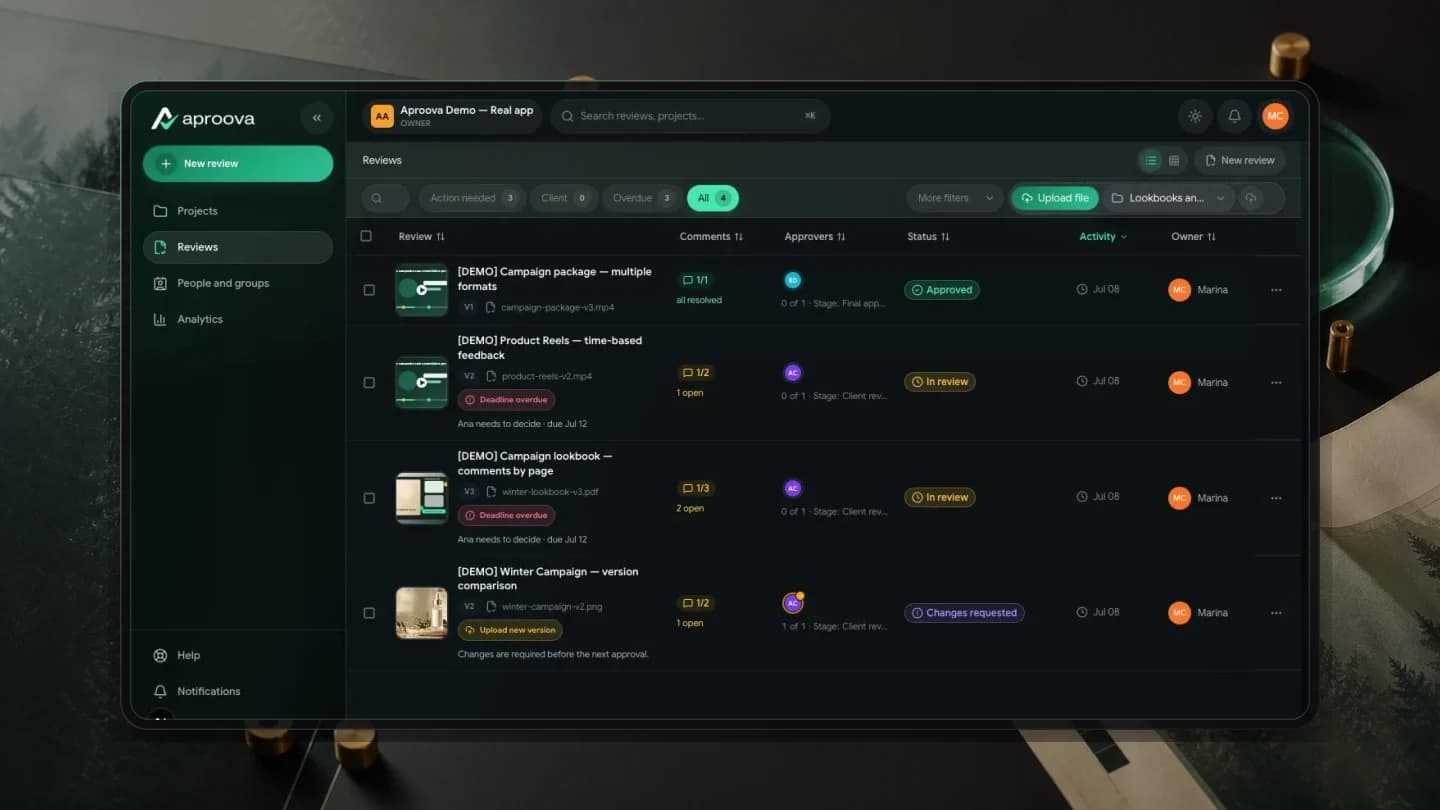
Online proofing for agencies: how it works and when it helps
Learn how online proofing connects comments, versions and campaign approval across designers, account managers and clients.
Read guide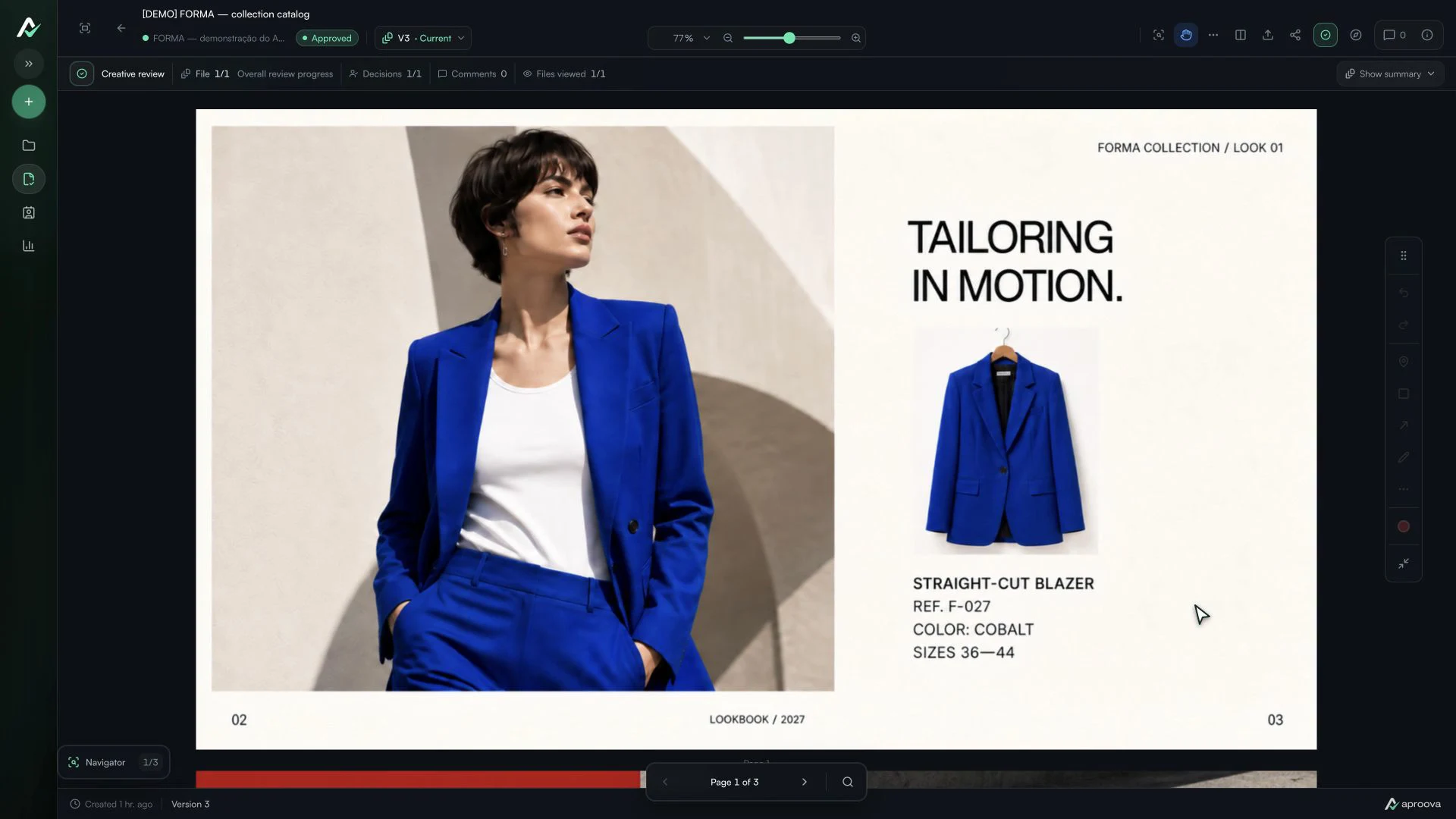
The client approved the artwork, then requested a change. Which decision applies?
Handle a change requested after approval, identify the authorized version and record a new decision without losing the history.
Read guide