
The review ends. The work stays connected.
Send the new version, the requested changes and the approval to the board, channel or automation your team already uses. The file, the comments and the decision stay in Aproova.
- 2 native connectors
- 3 notification channels
- Webhooks for everything else
Integrations on the Flow, Operations and Custom plans. 14-day trial, no credit card.
Teams in Brazil already review with Aproova:








 monday.com
 Trello
 Slack
 Microsoft Teams
 WhatsApp
 n8n
In the words of the teams using Aproova.
Testimonials translated from Portuguese.
Choose where the review shows up.
Seven connections in three places of your routine. All of them start from review events, and none of them takes the decision out of Aproova.
On the task board
The brief stays on the board. The review link and the decision reach the right item or card.
- monday.comNative connector
Link the review to an item and choose the status each event applies: new version, changes requested, approved or rejected.
- TrelloNative connector
Attaches the link to the card, comments on new versions and decisions and moves the card to the list you choose for each event.
In the team channel
Whoever follows the campaign gets the notification where they already talk, with a link back to the work.
- SlackWebhook notifications
Messages in the chosen channel for review created, new version and decisions, with filters by project or team.
- Microsoft TeamsNotifications via Workflows
Notifications in the Teams channel through a Workflows flow, with the event context and the review link.
- WhatsAppYour own provider
Notifications to the configured recipients through your provider: Evolution API, Z-API, WhatsApp Cloud API, Twilio or WATI.
In your own system
A review event starts the next step your operation has already defined.
- n8nWebhook automation
The Webhook node receives the event and your workflow decides the rest: spreadsheet, publishing task or notification.
- HTTP webhooksFor your own systems
Events to any HTTPS endpoint, with configurable method, headers and body, plus delivery history.
The events that leave the review.
You choose which ones trigger a notification, a status change or an HTTP call. WhatsApp uses the events chosen in the channel settings.
| Event | monday.com | Trello | Slack and Teams | n8n and webhooks |
|---|---|---|---|---|
| Review createdWork entered review. | No | No | Yes | Yes |
| New version uploadedThe fix is ready to check. | Yes | Yes | Yes | Yes |
| Comment createdSomeone marked a point on the file. | No | No | No | Yes |
| Decision submittedA participant recorded their decision. | No | No | No | Yes |
| Changes requestedThe piece goes back to the creative team. | Yes | Yes | Yes | Yes |
| Review approvedThe version is cleared. | Yes | Yes | Yes | Yes |
| Review rejectedThe piece does not move forward. | Yes | Yes | Yes | Yes |
| Approval reopenedA recorded approval is open again. | No | No | Yes | Yes |
| Review unlockedThe review accepts changes again. | No | No | Yes | Yes |
Approval reopened and review unlocked are only sent to destinations that tick those events. In Trello, the link is added to the card when you link the review.
A real example with monday.com.
In the review, each event gets a board status. When the client approves the collection, the item changes on its own and the team sees in monday what is already cleared.
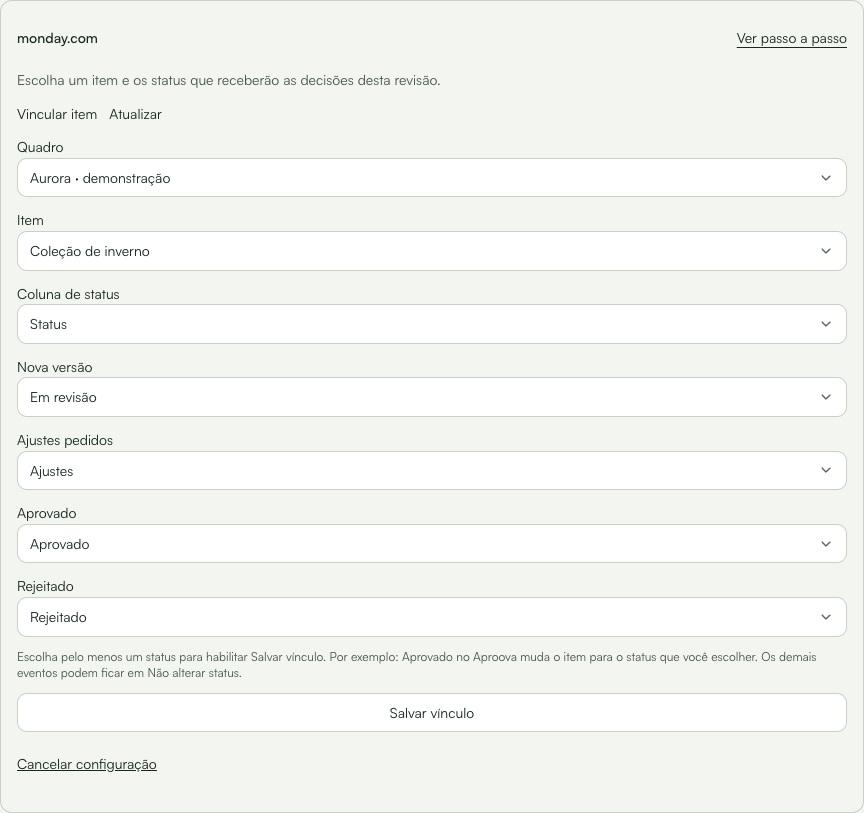
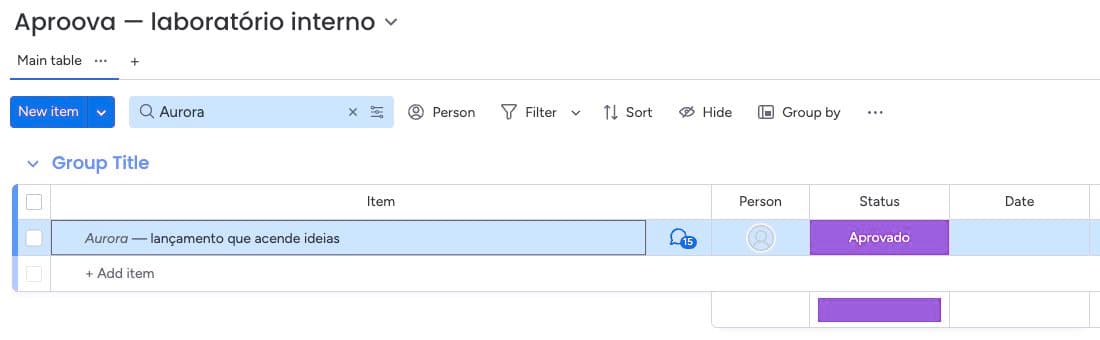
- Connect the account and allow the boards.
- In the review, open Details → History → monday.com.
- Choose the item and save the link.
Real Aproova and monday.com screens with demo data. The screenshots show the Portuguese interface.
Set it up in four steps.
The same path for any destination, in Settings → Integrations.
- Choose the destination
The workspace owner opens Settings → Integrations and chooses the board, channel or endpoint.
- Authorize or paste the address
monday.com and Trello ask for the account and the allowed boards. Slack, Teams, n8n and webhooks use the destination URL.
- Select events and filters
Define which events trigger a notification or a move, and limit by project or team when it makes sense.
- Test before turning it on
Send a test, check the result at the destination and follow the delivery history in Aproova.
- The decision stays in Aproova
Replying “approved” in Slack, Teams or WhatsApp does not approve the piece. The approval counts when it is recorded in the review.
- Permissions do not change
Receiving a notification does not grant access to the work. Whoever opens the link goes through the same review rules.
- Every delivery is recorded
The history shows attempts and failed deliveries, so you can check why a notification did not arrive.
Integrations on the Flow, Operations and Custom plans. Start with the Flow trial and connect your first board or channel.
Questions about integrations.
Which plans include integrations?
Flow, Operations and Custom, with the feature enabled. The account and costs of the external service (monday.com, Trello, Slack, WhatsApp provider) are separate from Aproova.
Who can set them up?
The workspace owner authorizes the accounts and creates the destinations. In Trello, owners, admins and members with access to the review can manage the link on the allowed boards.
Does moving the card or item on the board approve the piece?
No. Sync goes from review events to the board. Changing the card or status there does not record a decision in Aproova.
Can I use Zapier, Make or another platform?
Yes, when the platform accepts HTTP requests in the format you configure in the webhook. Test delivery at the destination before you rely on the flow.
Is there an Aproova node in n8n?
The connection uses n8n's Webhook node and HTTP requests. Use the webhook's production URL, not the test URL.
Does the plan include a WhatsApp number?
No. You set up your own provider and number, under that service's rules and billing.
Connect your first review to the team's routine.
Create the workspace, upload a piece and choose where the decision goes after the OK.
Need your own workflow? Explore webhooks.
Teams in Brazil already review with Aproova: