


Webhooks and n8n
Send review events to an HTTP service with filters and custom data.
Review events reach your automation.
Learn with an example
One action at a time.
Send review events to an HTTP service with filters and custom data.
Step 1
In Settings > Integrations, open Configure generic webhook. Use the dedicated forms for Slack and Teams.
Step 2
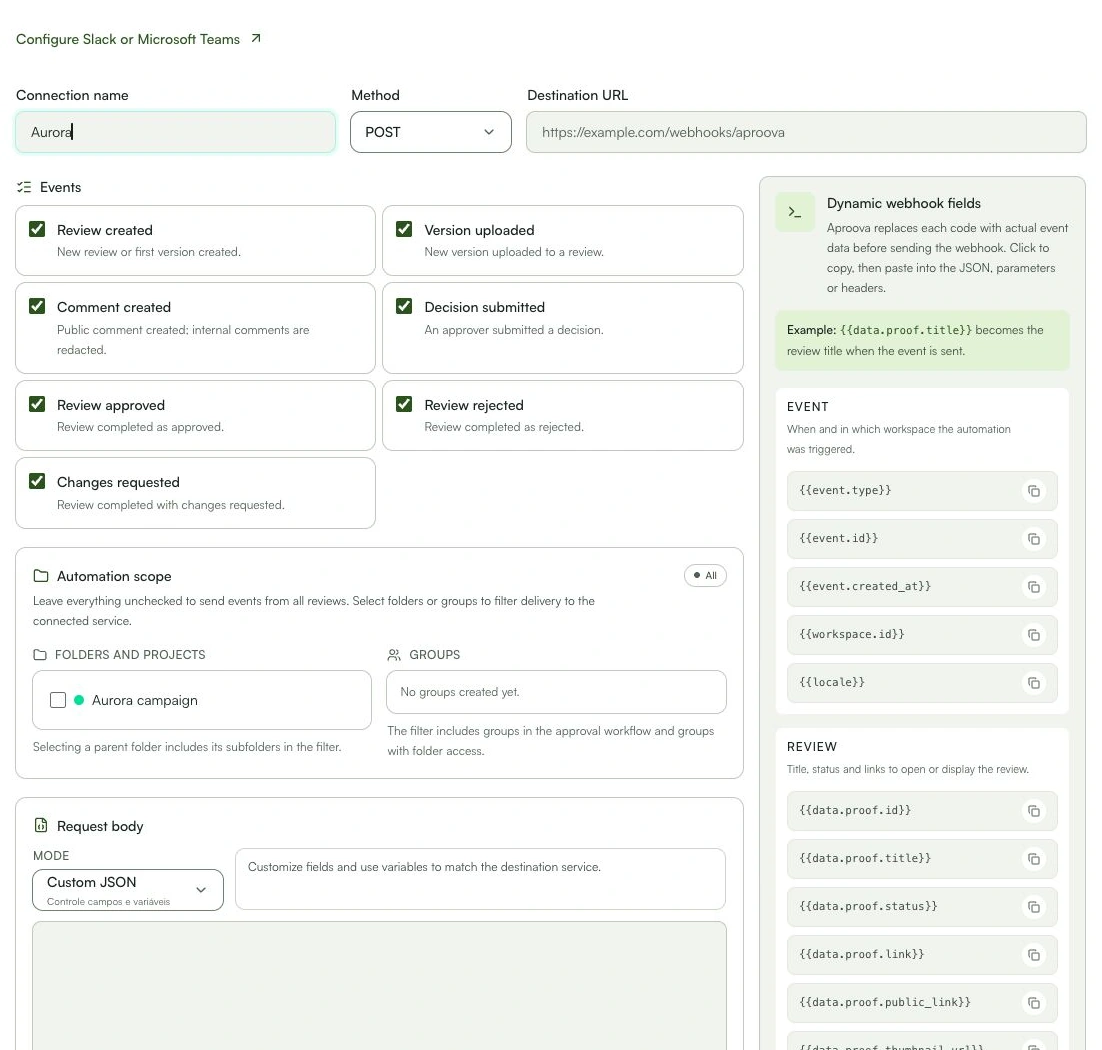
Set a name, method and destination URL. In n8n, create a Webhook, choose POST, activate the workflow and copy its Production URL.
Step 3
Choose events. Under automation scope, select folders or groups; no selection means a general filter.
Step 4
Configure the body, parameters and headers. Use the dynamic fields shown in the form; never publish credentials in examples.
Step 5
Save, use Test and check delivery history and the destination run. A successful HTTP response does not prove the final action happened.
Step 6
Use Pause in the list to stop new notifications. Before Remove, check the endpoint and automations that depend on it.
What you can do
The event reaches the configured destination; review and approval stay in Aproova.
Check these details
What do I need before I start?
- Workspace owner and a plan with webhooks (Flow or above). Have the receiving service’s production URL; external accounts and fees are separate.
How do I know I’m done?
The event reaches the configured destination; review and approval stay in Aproova.
Something didn’t work. What should I check?
- Not delivered: check URL, method, authentication, filters and delivery history. Do not use n8n’s Test URL for an active automation.
- Avoid duplicate actions at the destination: use the event identifier to recognize repeated attempts.
- n8n works through webhooks; it is not an official connector installed by Aproova.
- To follow along in the app, choose the tool in the guide at the top of Settings → Integrations. Use Next step and Open full help as needed. Moving through the guide does not connect accounts or send messages; verify the result at the destination before using it in production.
Continue your review
Webhooks and n8n
Send review events to an HTTP service with filters and custom data.