

Light, background and wireframe
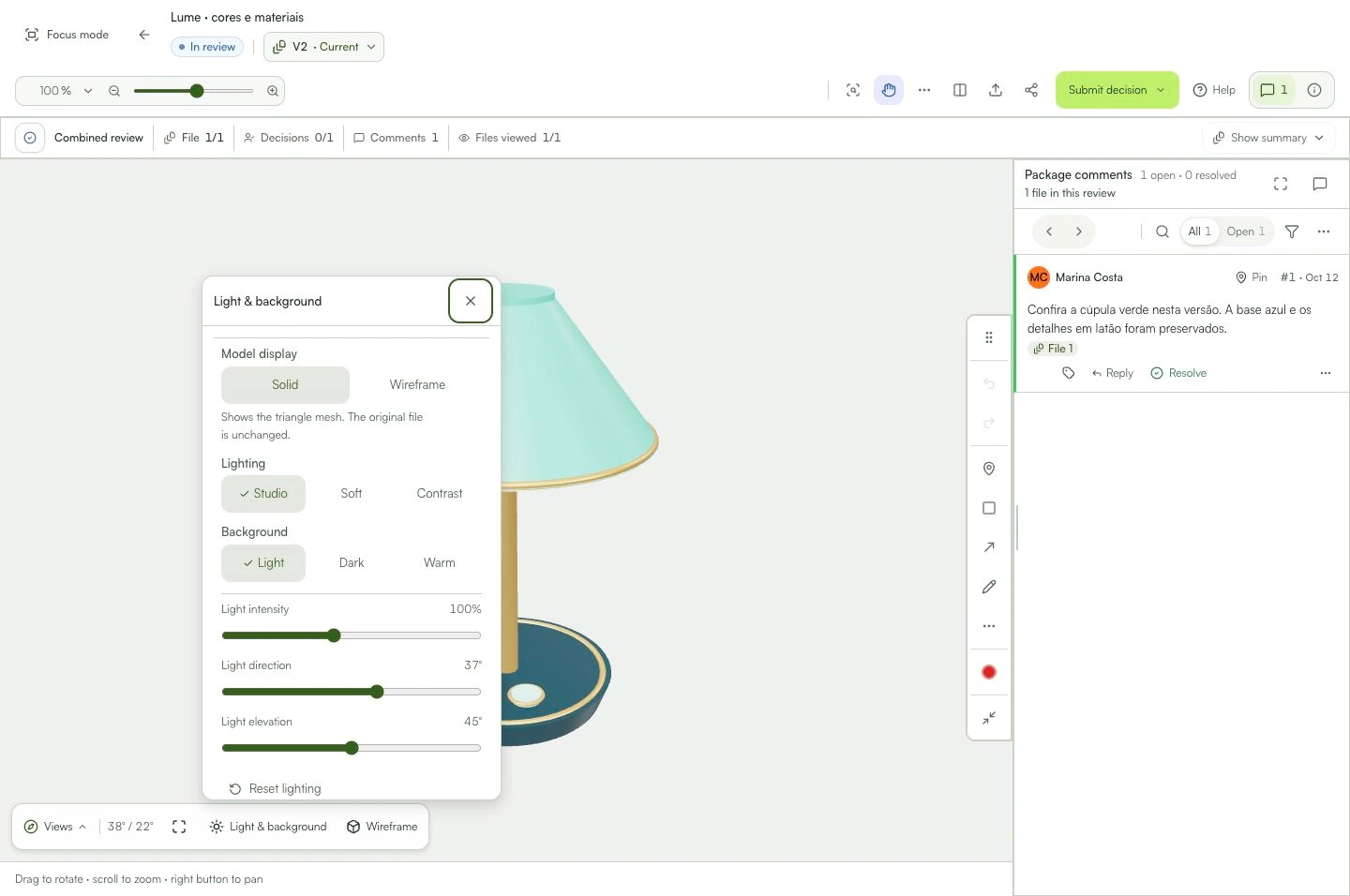
Adjust light intensity, direction and elevation, choose a background and save the view with a comment.
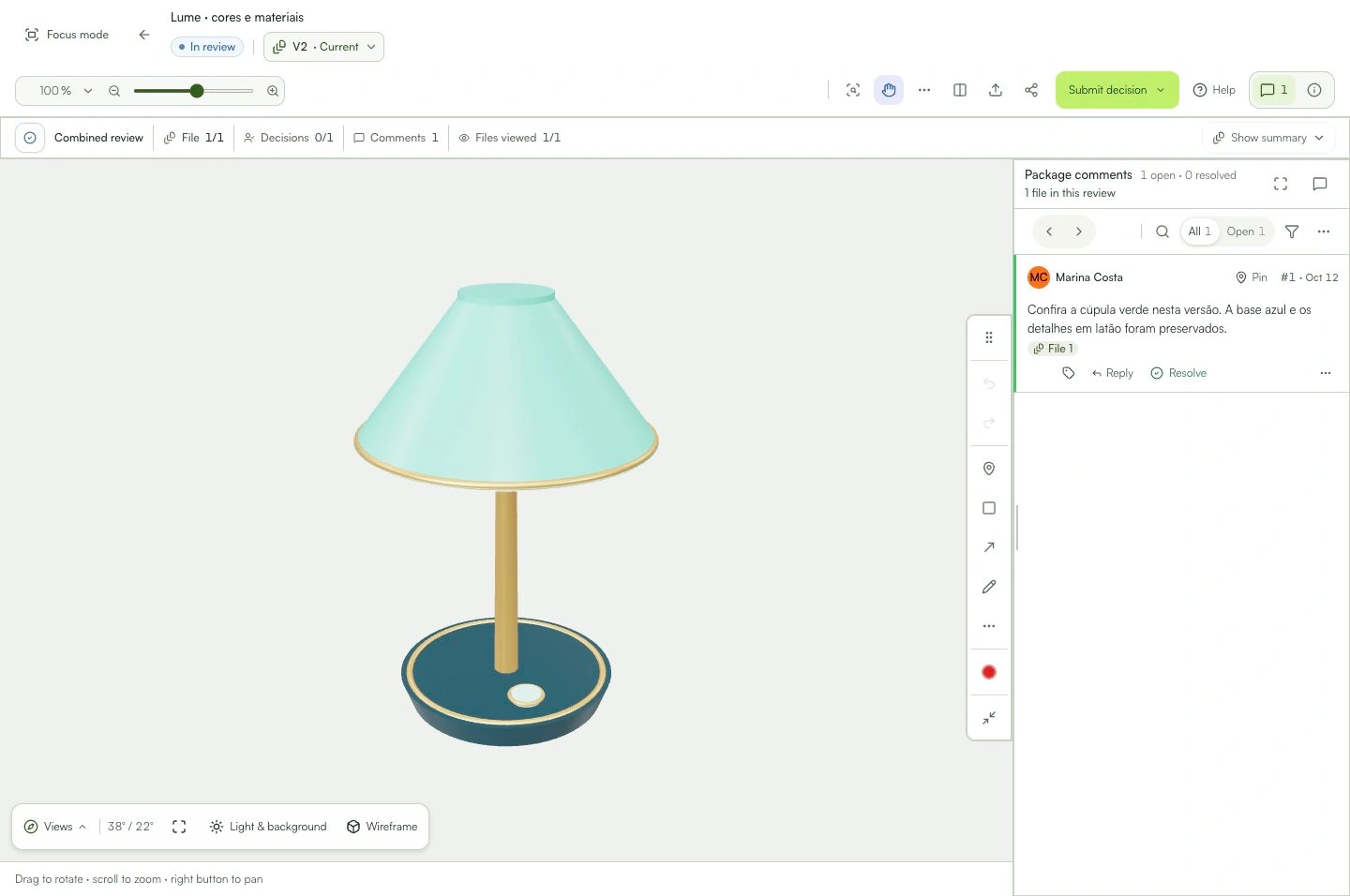
Opening the comment restores its recorded view and lighting.
Learn with an example
One action at a time.
Adjust light intensity, direction and elevation, choose a background and save the view with a comment.
Step 1
Open Light & background next to Views at the bottom of the model. Use Wireframe to inspect the triangle mesh; click again to return to solid.
Step 2
Choose Studio, Soft or Contrast under Lighting and Light, Dark or Warm under Background.
Step 3
Set Light intensity from 25% to 200%, Light direction from −180° to 180° and Light elevation from 0° to 90°. The controls also accept keyboard arrows.
Step 4
Rotate the model to check that the detail stays visible. Use Reset lighting to restore the default light without changing the background.
Step 5
Create a markup and post the comment to save the view and light. For existing markup, use Save current view while editing, then save the markup.
What you can do
Opening the comment restores its recorded view and lighting. The report capture uses that appearance.
Check these details
What do I need before I start?
- A 3D model open in the viewer.
- Comment permission if you want to save the view in a markup.
How do I know I’m done?
Opening the comment restores its recorded view and lighting. The report capture uses that appearance.
Something didn’t work. What should I check?
- Model too bright or dark: reduce intensity or adjust direction and elevation before deciding the material is wrong.
- Changing the light does not add textures to STL or OBJ; they display geometry with neutral material.
- Lighting does not change the original file. The preview does not certify physical color, finish or manufacturing tolerances.
Continue your review
Light, background and wireframe
Adjust light intensity, direction and elevation, choose a background and save the view with a comment.