

Annotations on artwork
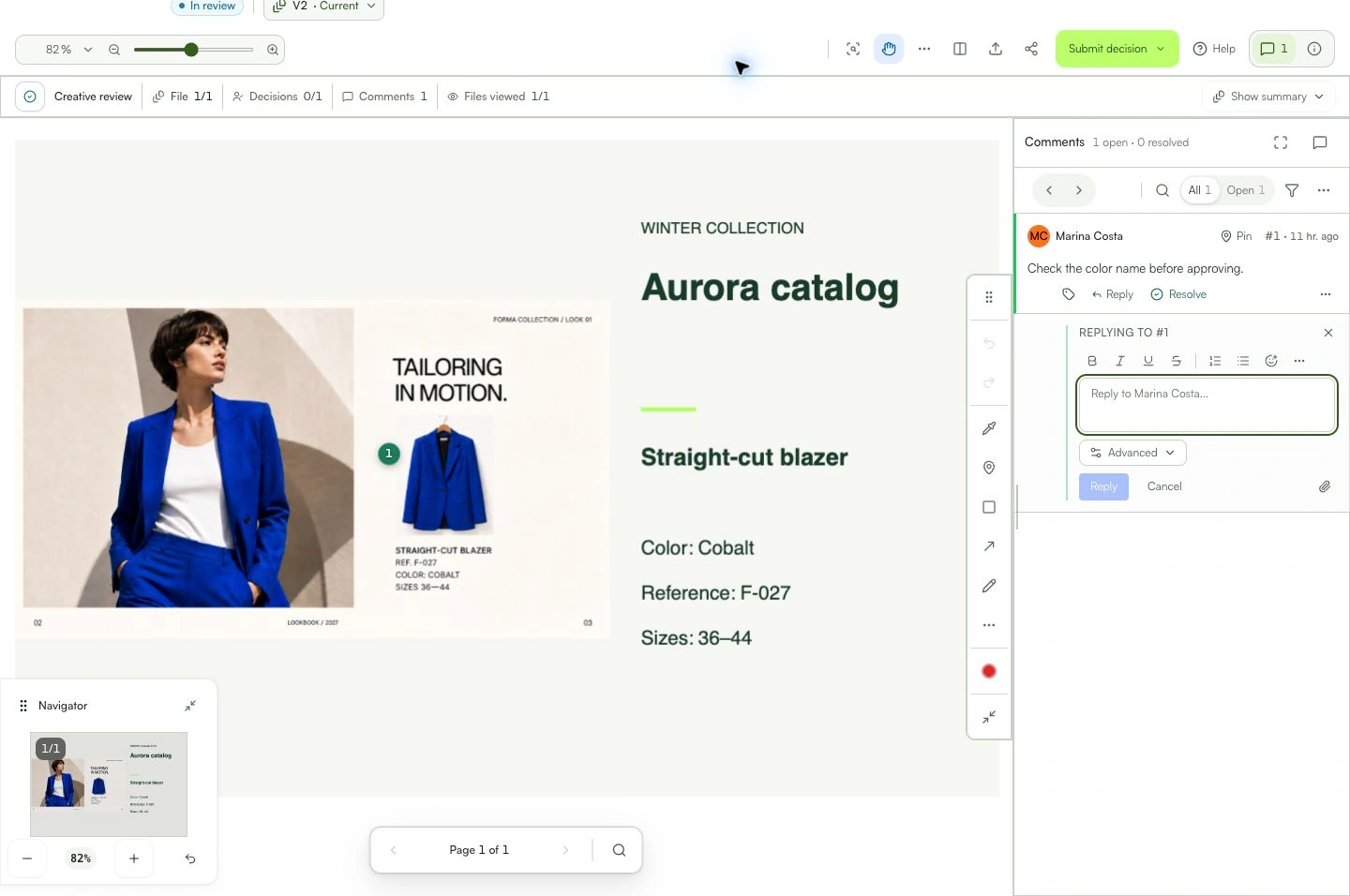
Attach a comment to the exact area, page, or moment in the work.
The comment is attached to the correct visual context.
Learn with an example
One action at a time.
Attach a comment to the exact area, page, or moment in the work.
Step 1
Open the correct version and zoom in on the detail before marking it.
Step 2
Select Point. Selecting the tool does not place a marker yet.
Step 3
Click or tap the exact location for the comment.
Step 4
To indicate a direction, select Arrow and drag to the target: the arrowhead ends where you release. Use Rectangle to outline an area.
Step 5
Describe what needs to change. Post the comment and check its marker.
What you can do
The comment is attached to the correct visual context.
Check these details
What do I need before I start?
- A file type that supports markers.
- Permission to comment.
How do I know I’m done?
The comment is attached to the correct visual context.
Something didn’t work. What should I check?
- The tool depends on the file type and your permission.
- Confirm zoom, page, or time before posting.
- On mobile, zoom and pan without hiding the comment control.
Continue your review
Annotations on artwork
Attach a comment to the exact area, page, or moment in the work.