

3D review · pilot
Explore models, add points, arrows and areas, compare versions and record approval in the 3D pilot.
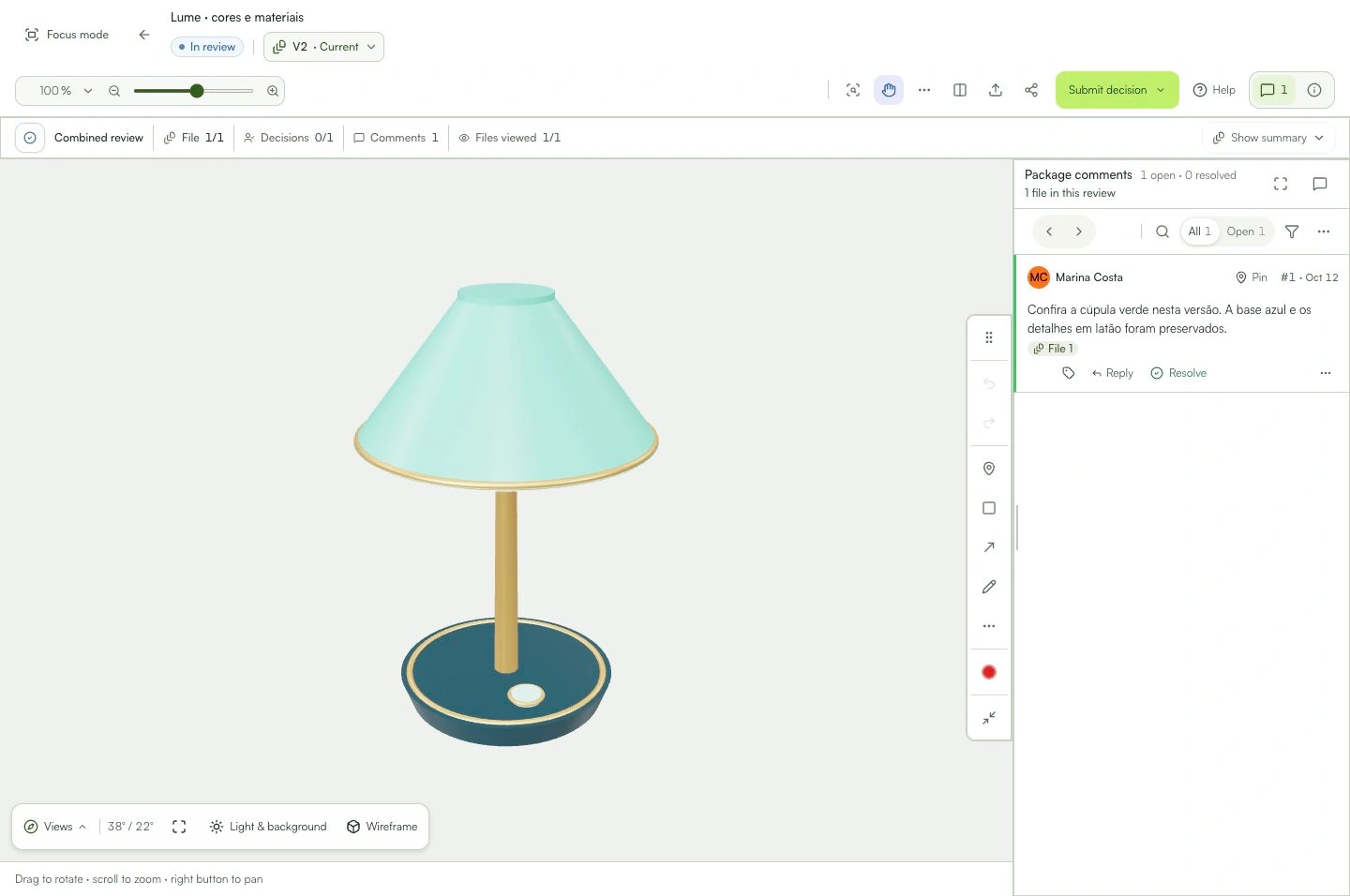
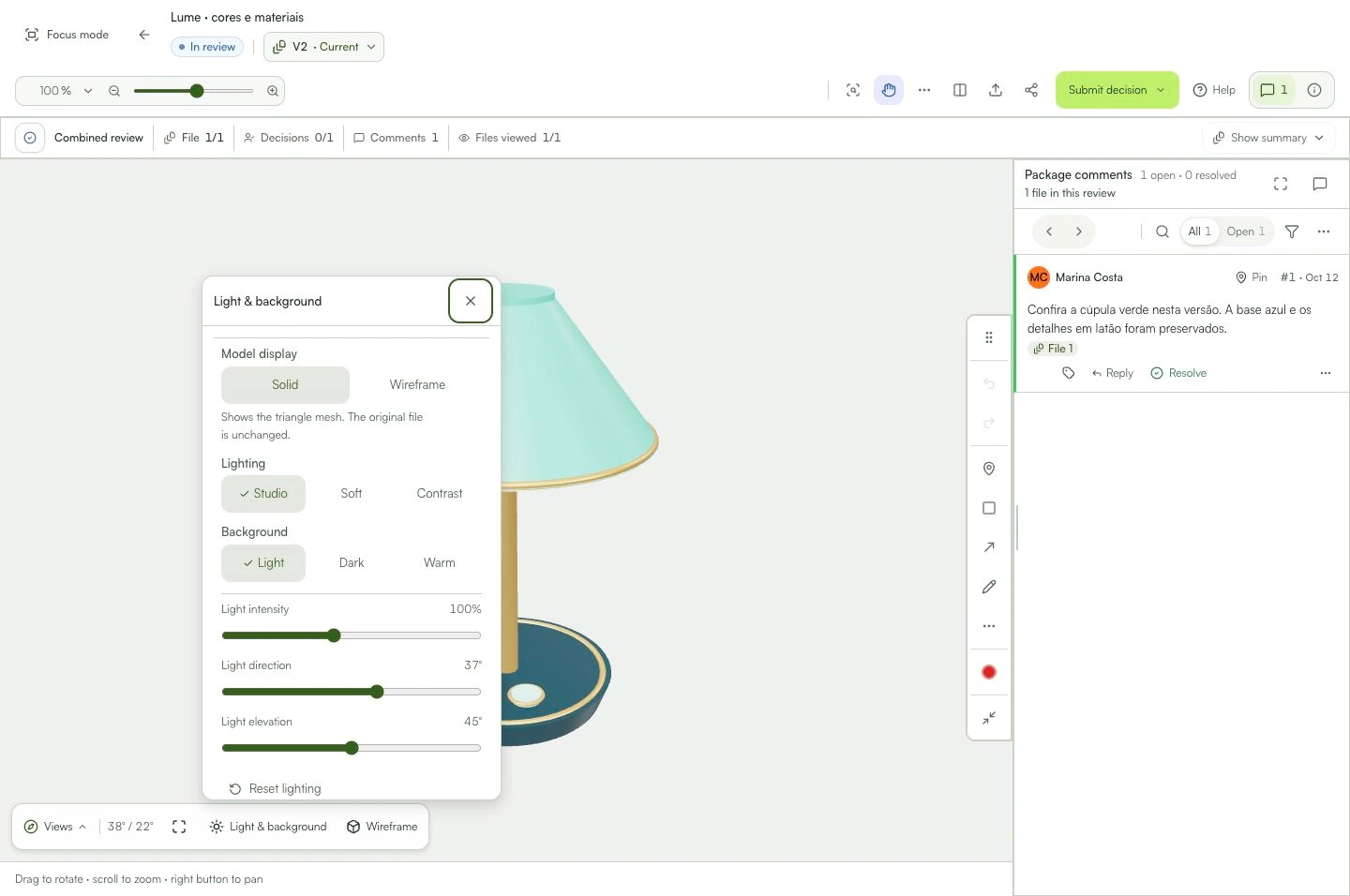
The comment stores the model position, view and appearance.
Learn with an example
One action at a time.
Explore models, add points, arrows and areas, compare versions and record approval in the 3D pilot.
Step 1
Create a review or add a version to an existing review and upload the model through the regular file flow.
Step 2
Choose the file and version. Drag to rotate, scroll to zoom and use the 3D navigator views to find the detail.
Step 3
Use the review annotation tools: point, arrow, rectangle, ellipse, line or freehand. Start on the surface and write your comment in the side panel.
Step 4
To correct your own markup, open its editor. Move, redraw or adjust the area, then save. Undo and redo affect the draft being edited.
Step 5
Upload the update as a new version. Compare side by side, with an overlay or with visual differences, and rotate to inspect other sides.
Step 6
On the current, unlocked version, people with decision permission can approve or request changes. Export the comment report for the selected file and version to document the feedback.
What you can do
The comment stores the model position, view and appearance. The report includes a 3D capture of exported markups.
Check these details
What do I need before I start?
- A self-contained GLB or FBX, STL or OBJ file up to 50 MB, also within your plan limit, and up to 1 million triangles.
- A WebGL-enabled browser and permission for the action you want to perform.
- Binary or ASCII FBX 7.0–7.7: embed PNG, JPEG or WebP textures. The viewer shows the initial pose without playing animations; renderer-specific materials may look different.
How do I know I’m done?
The comment stores the model position, view and appearance. The report includes a 3D capture of exported markups.
Something didn’t work. What should I check?
- Model will not open: check file size, triangle count and WebGL. GLB with Draco, KTX2 or external references is not supported in this pilot.
- STL and OBJ use a neutral material. To review colors and textures, export a self-contained GLB.
- Cannot comment or decide: check your role, the current version and whether the review is locked. A guest link does not automatically grant every action.
- Comparison is visual and does not measure manufacturing dimensions or tolerances. Export BLEND and native CAD files to a supported format.
Continue your review
3D review · pilot
Explore models, add points, arrows and areas, compare versions and record approval in the 3D pilot.