

Aproova
Version history
Update the work without losing comments, decisions, or history.
In practice
The new version appears in the same review and the history remains available.
See the context in the app
Learn with an example
One action at a time.
Update the work without losing comments, decisions, or history.
Step 1
Open the correct review.
Step 2
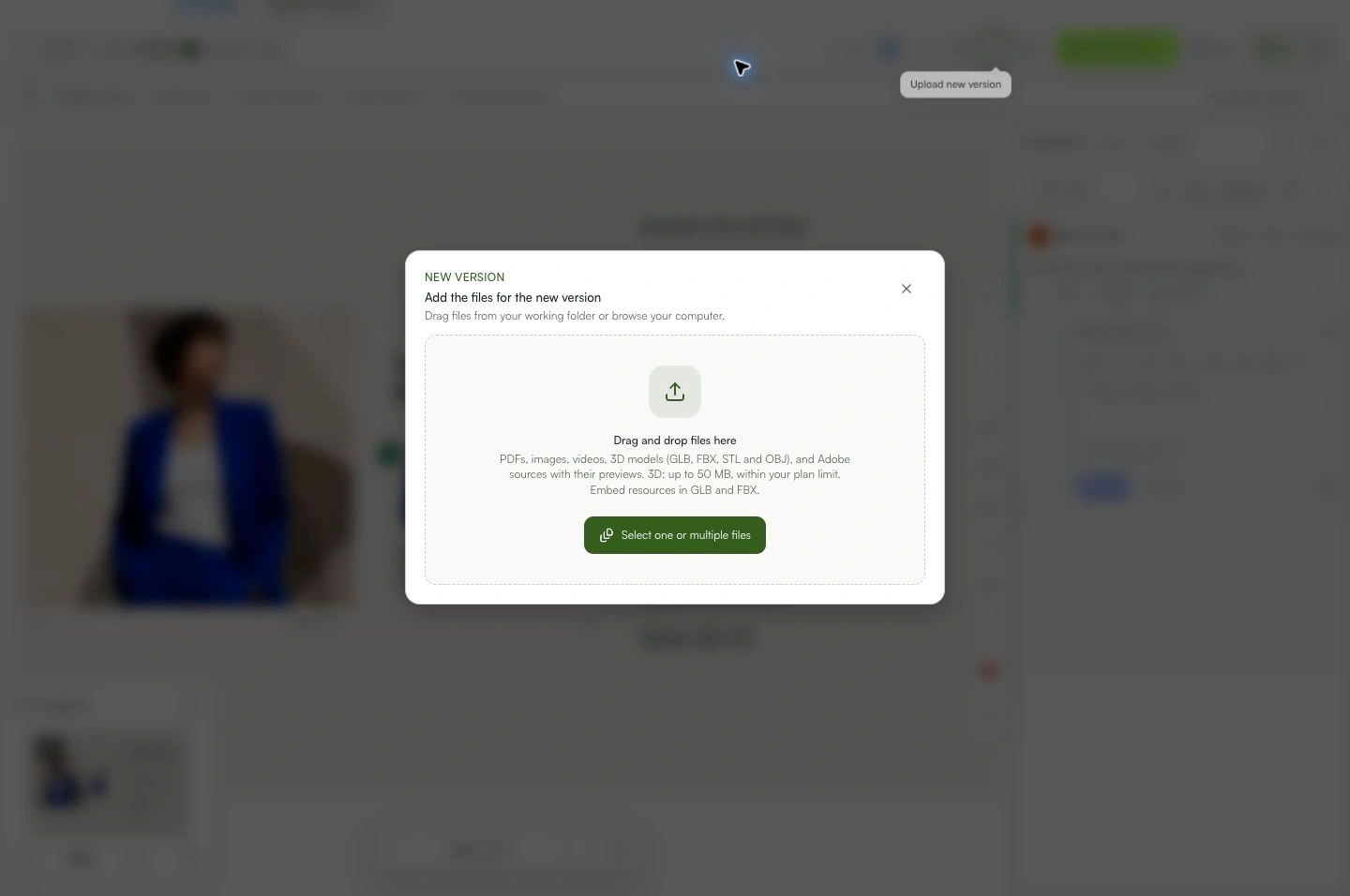
Choose “Upload new version”.
Step 3
Select the updated file.
Step 4
Check its name and preview.
Step 5
Wait for the upload to finish.
Step 6
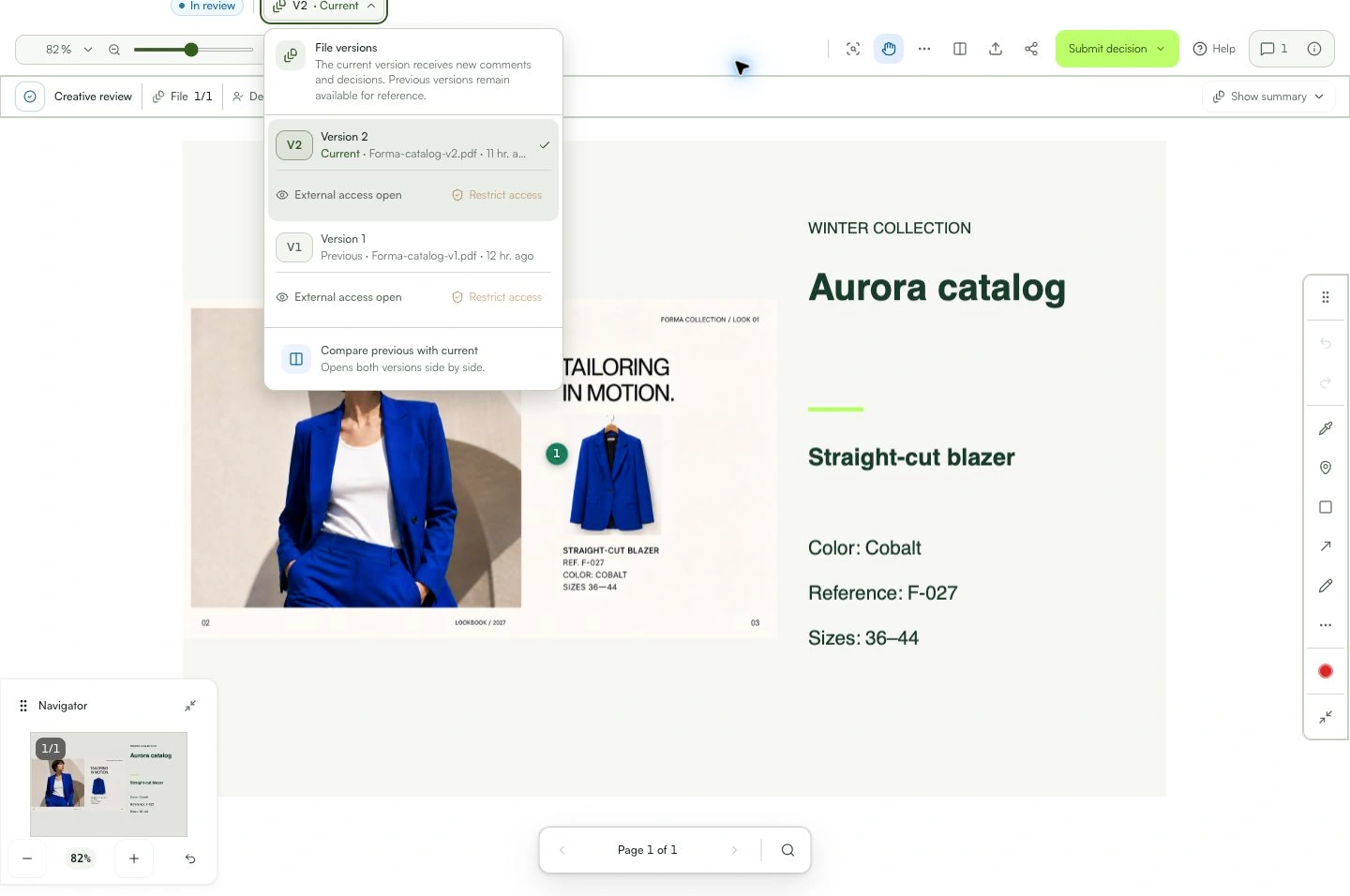
Confirm which version is now current.
What you can do
The new version appears in the same review and the history remains available.
Check these details
What do I need before I start?
- An existing review.
- Permission to upload versions.
- The updated file.
How do I know I’m done?
The new version appears in the same review and the history remains available.
Something didn’t work. What should I check?
- If you created another review, return to the original and upload a new version.
- Retry the upload without deleting the previous version.
- Do not share until you confirm the right file.
Continue your review
Version history
Update the work without losing comments, decisions, or history.