

Artwork approval checklist before sending a file to print
Check content, versions and responsibilities before releasing artwork. Separate visual approval from the printer's technical validation.
Written by the Aproova product team from the review flows we build and test in the application.
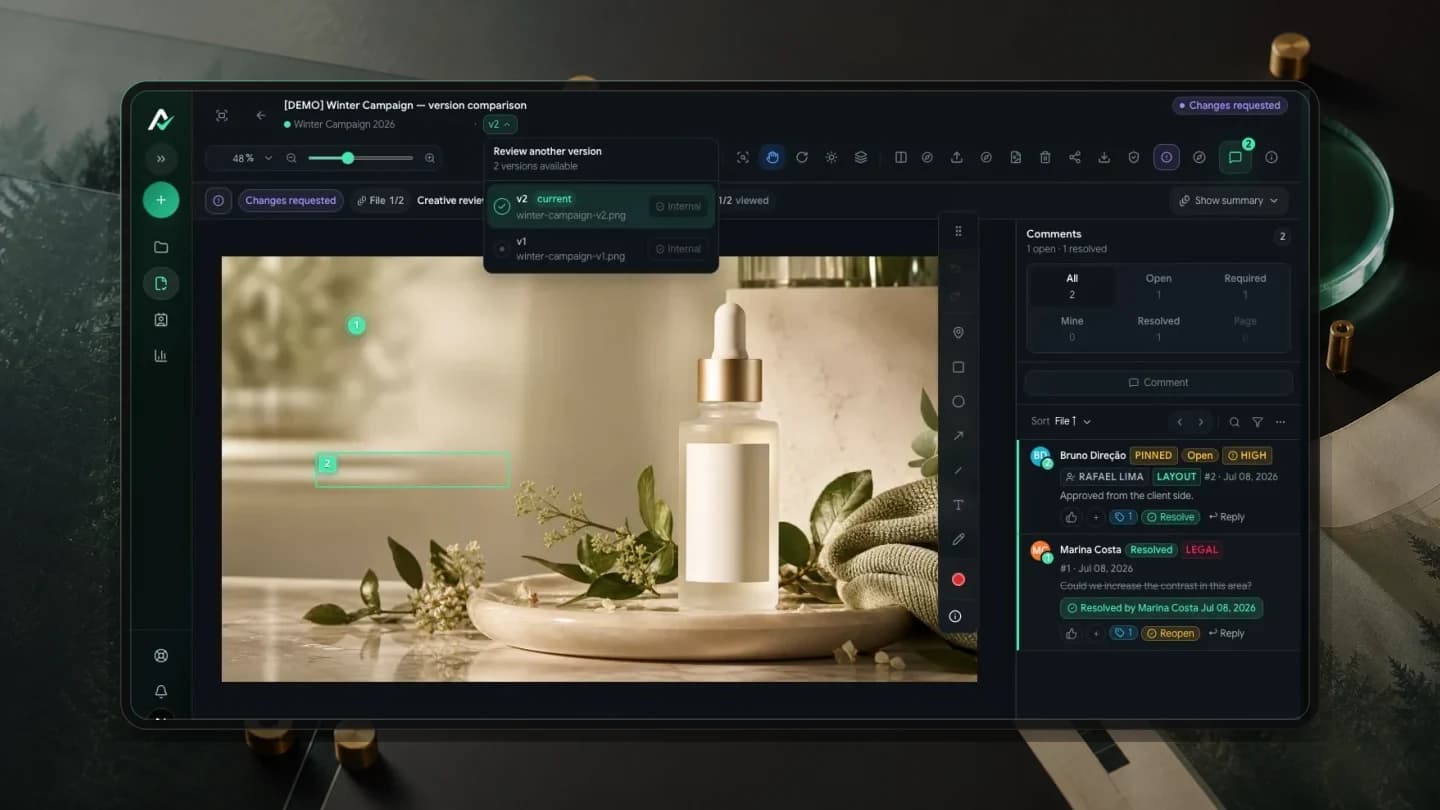
The client looks at a PDF and approves it. The printer receives a different file, exported after a small correction. Nobody can then tell whether the production version is the one the client checked.
A useful checklist connects that handoff. It organizes the content review and ties the decision to the right file. Technical checks remain with the people preparing and producing the material; the client confirms the information they know.
Identify the file and the scope of approval
Record the material, version and intended use. ‘Product brochure, version 3, front and back’ is clearer than ‘final PDF’. List adaptations for stores, languages or different dimensions. Do not assume that approval of one variation covers the others.
Name the client's decision-maker and the person receiving the release. Several people may check the material, but the team needs to know when the round ends and which open issues prevent delivery. Keep this information with the reviewed file.
Check the content before discussing finishing
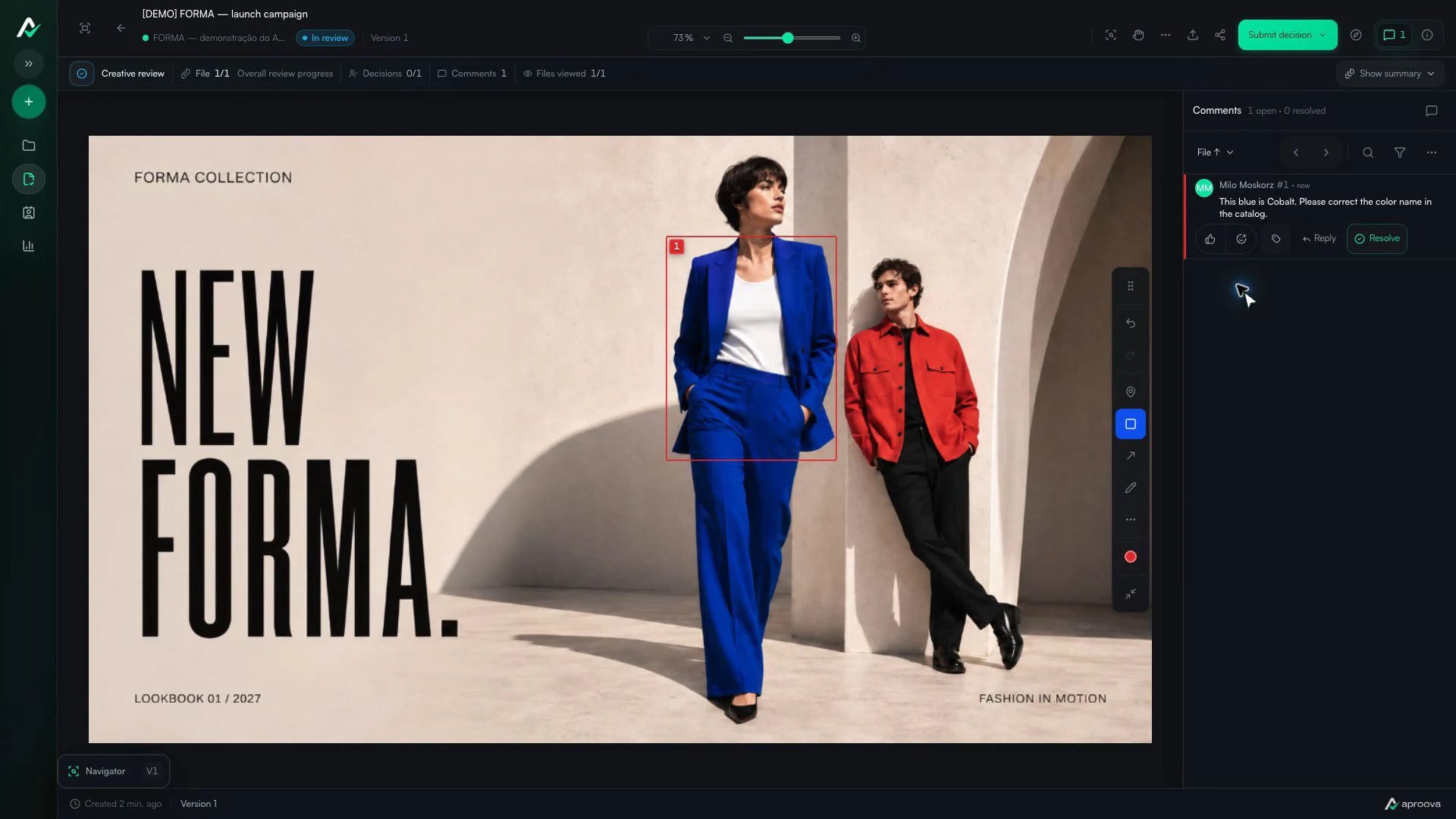
Read names, descriptions, prices, dates, references and contact details against the client's approved source. In a catalog, check that each image matches the written reference. In a brochure, check that the offer conditions are complete. The person responsible for the data must confirm it.
Make corrections specific. ‘Page 4: replace reference ABC-10 with ABC-12, following the validated product list’ is a fictional example of an actionable comment. ‘Check the codes’ returns a decision to the agency that may depend on the client. Check link and QR code destinations too; readability in the final application may require a proof.
Confirm specifications with the printer
Agree unfolded and finished size, substrate, finishing and delivery conditions. Ask for the printer's requirements for trim and bleed, color profile, resolution, fonts and PDF standard. Requirements vary by process and supplier; a fixed number in a checklist does not replace job specifications.
Prepress tools inspect properties that ordinary visual review may miss. Acrobat Pro, for example, provides Preflight and Output Preview. Reviewing comments in Aproova is not a substitute for these technical checks.
Separate visual review from color approval
A browser preview helps discuss layout, content and the location of changes. It does not guarantee the final appearance on a particular paper or material. If color reproduction is critical, agree the reference and proof used for approval with the supplier.
Output simulation depends on production settings. Acrobat Pro's overprint preview helps inspect ink overlap. Agree color references and proofs with the printer, and make clear which layout decisions can be made on screen and which require another check.
Compare the correction and close the round
After changes, check every request in the new version and look around the edited area. Longer text can move a block; a replaced image can affect its caption. Version comparison helps locate differences, but the reviewer still needs to judge whether the result meets the request.
At release, identify the approved version and confirm the corresponding production file. If the supplier needs a change affecting content or appearance, arrange another check. The history should explain the sequence without searching attachments in several conversations.
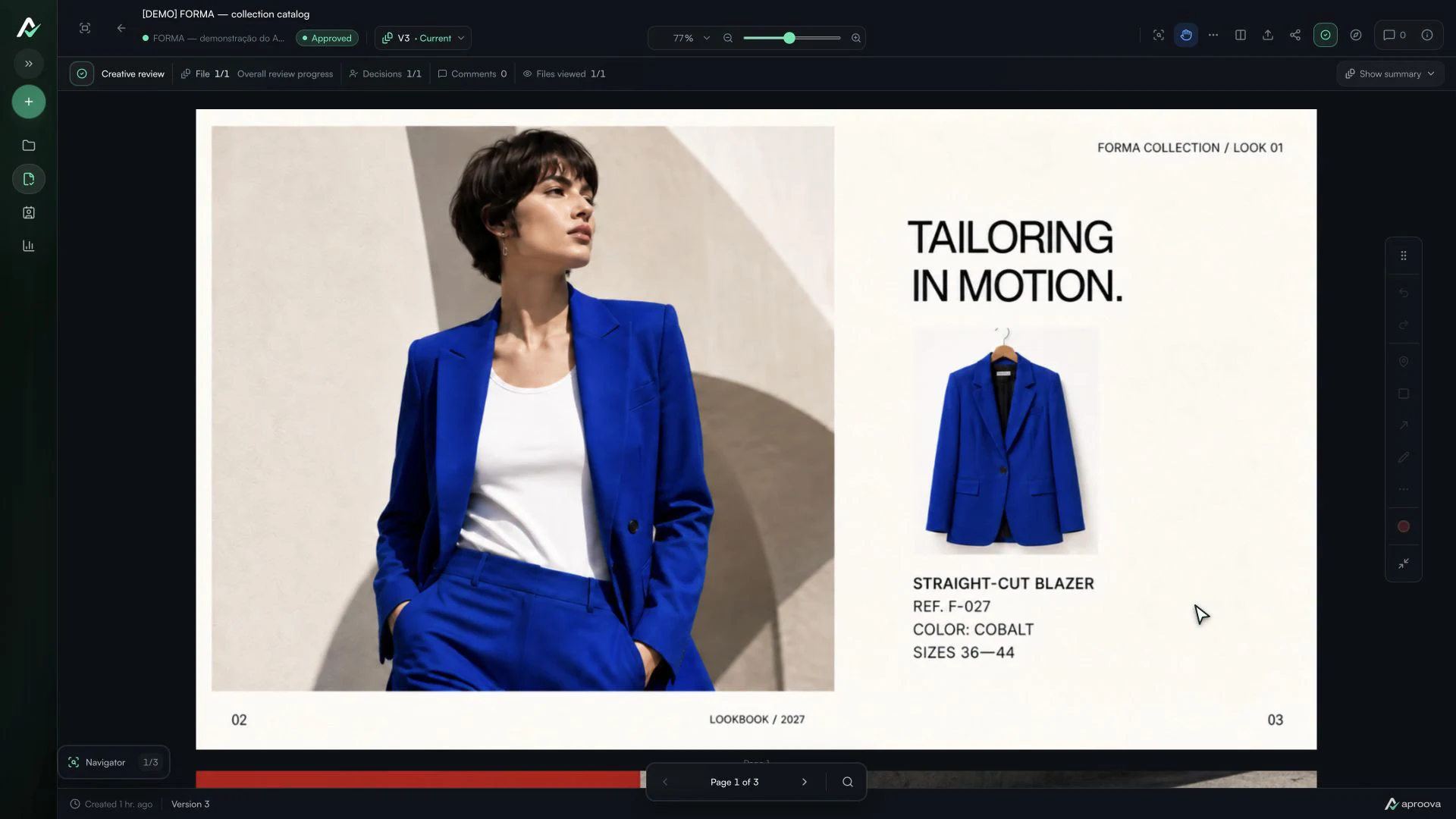
What the video shows
The four checklist items are checked, Approved is selected and the decision is confirmed. Version 3 shows one completed decision out of one. Recorded in Aproova using a fictional fashion collection and test comments.
Questions people ask before setting up the workflow
Should the client check bleed and color profiles?
Technical checks belong to a qualified designer or supplier. The client should understand the application and confirm the information and decisions they are responsible for.
Does every printer require the same PDF settings?
No. Confirm the supplier's standard for the chosen material and process. Do not apply universal settings without checking the specification.
Can I change information after approval?
Yes, but identify the change and submit it to the appropriate check before production. Do not treat approval of the previous version as covering the change.
Does Aproova automatically fix technical PDF problems?
This workflow uses Aproova for comments, versions and decisions. It does not assume automatic file correction or prepress certification. Technical validation follows the printer's process.
Continue with these guides
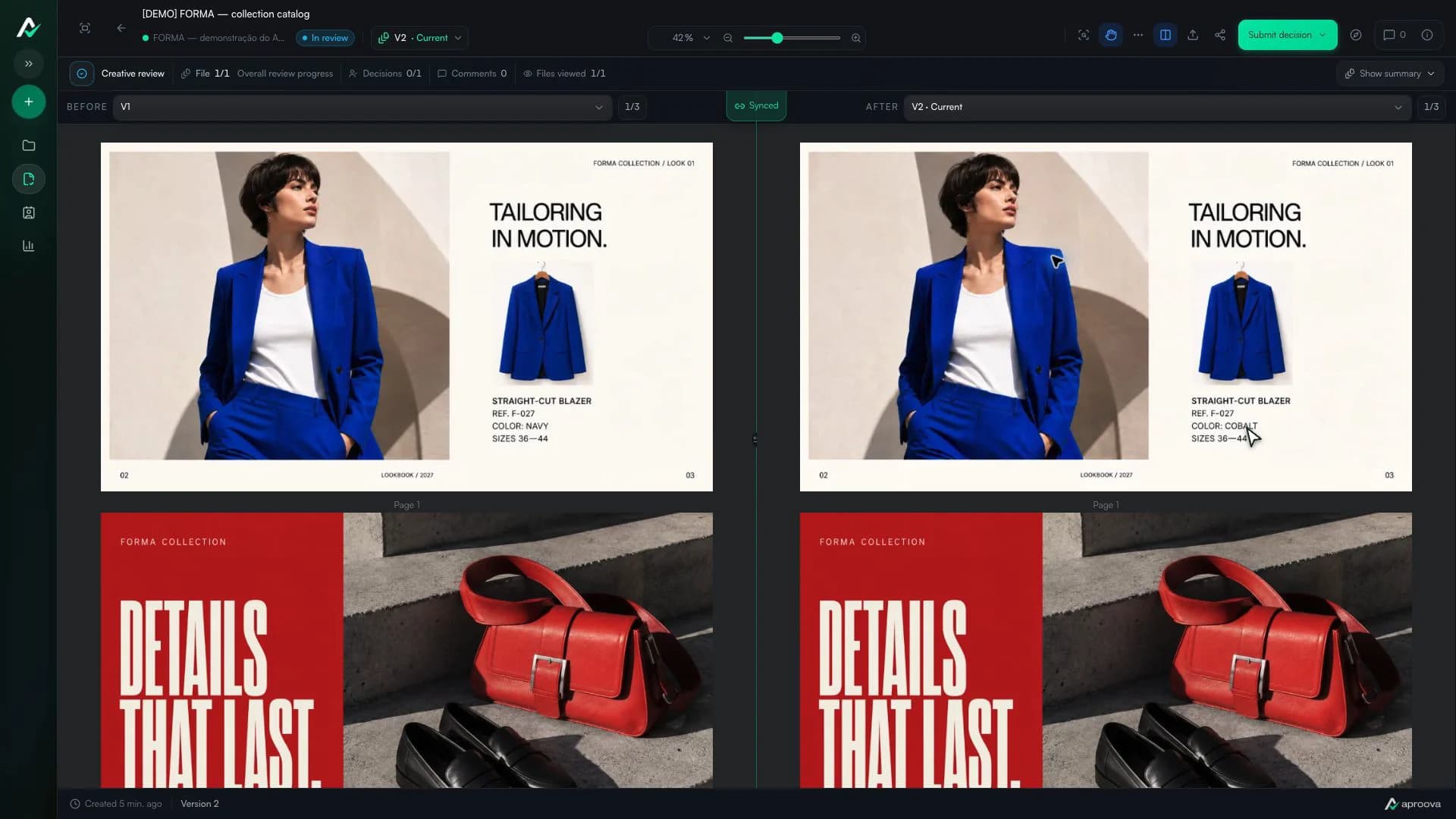
How to compare creative versions without relying on memory
Use side-by-side and overlay comparison to check changes before approving the final artwork.
Read guide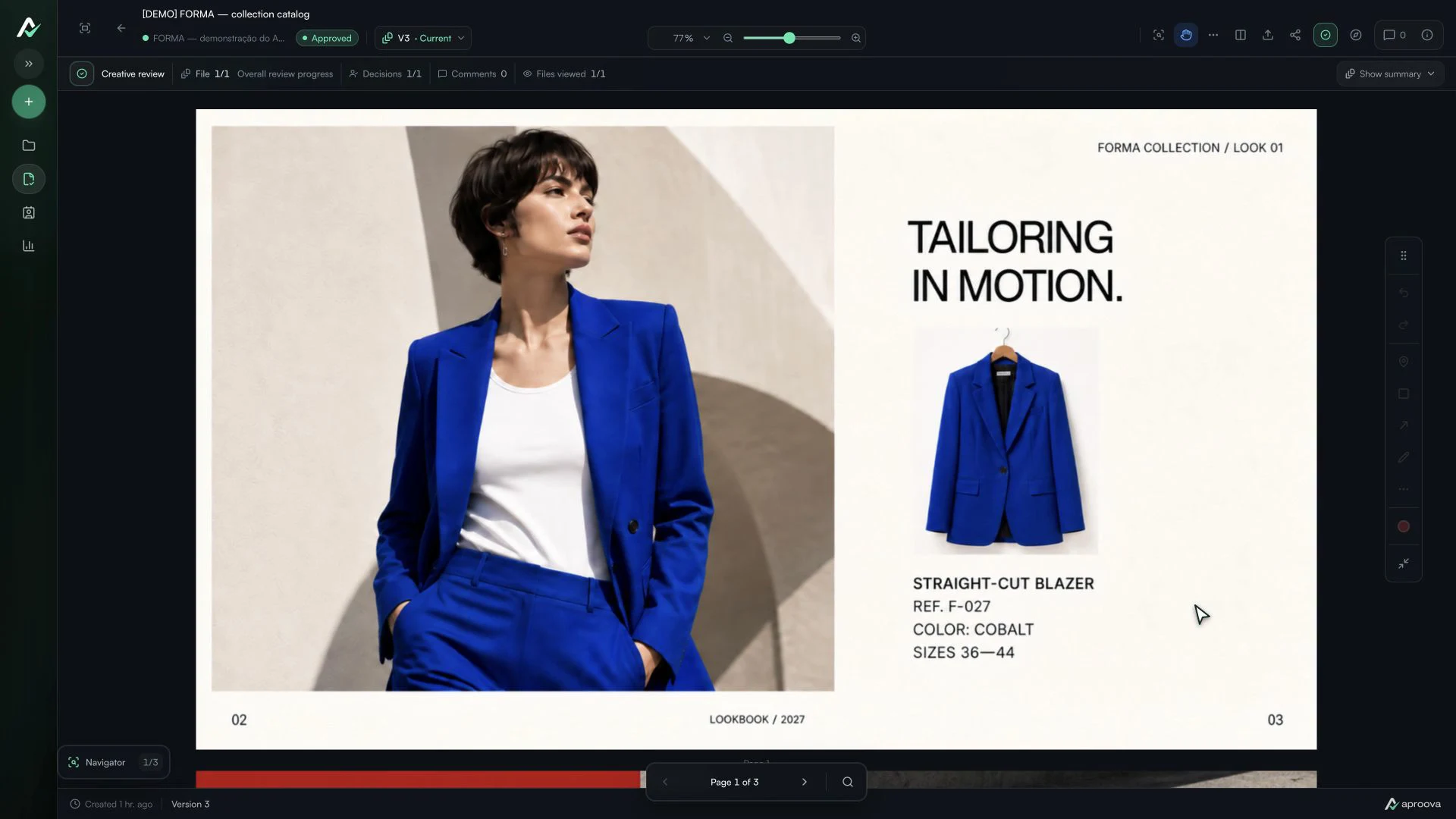
The client approved the artwork, then requested a change. Which decision applies?
Handle a change requested after approval, identify the authorized version and record a new decision without losing the history.
Read guideHow to review a PDF with clients without scheduling another meeting
Use page-specific comments, clear versions, and one client link to review PDFs asynchronously.
Read guide