

Aproova
PDF text search
Find words in a document and move between matches without checking each page.
In practice
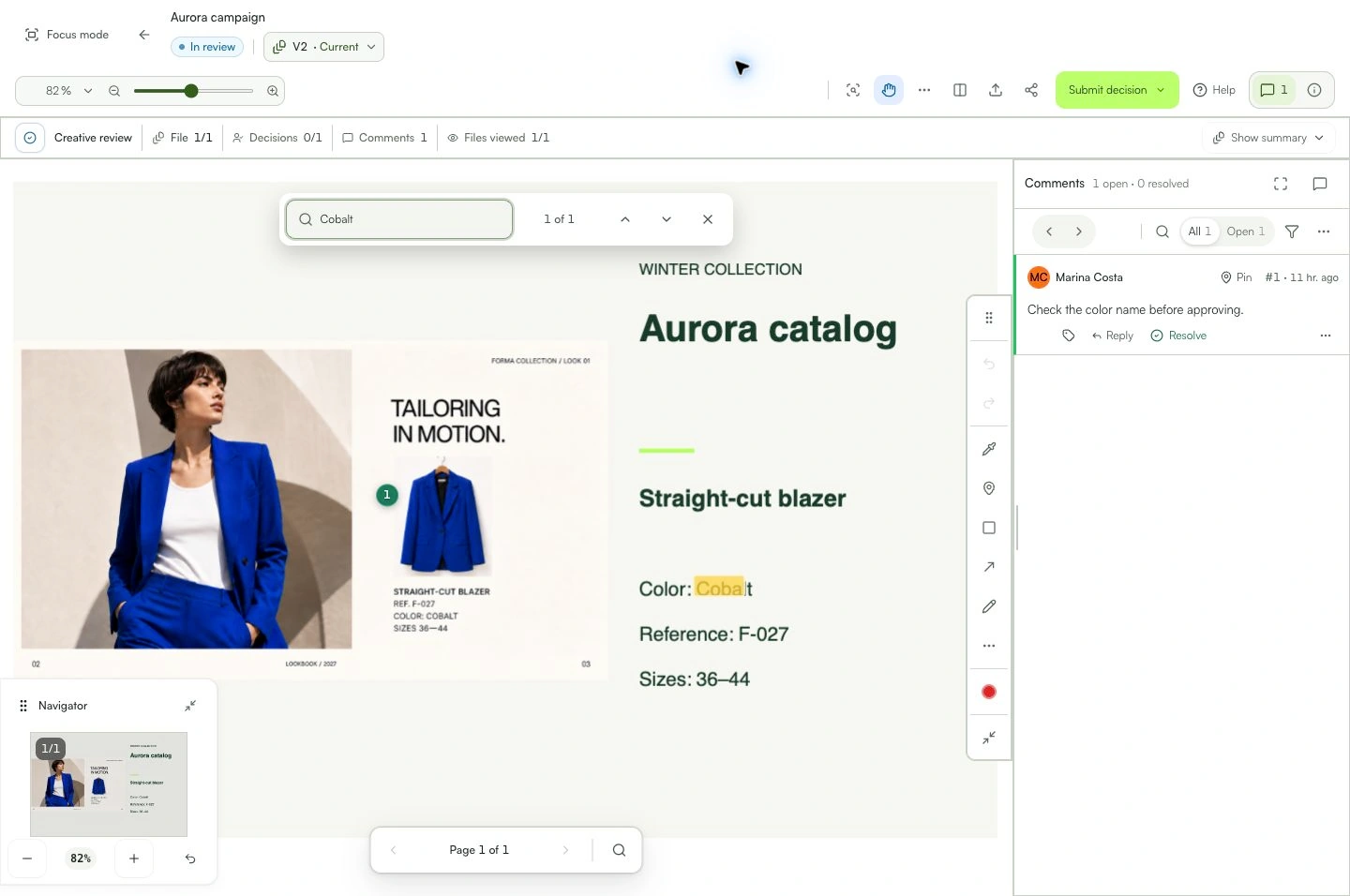
Search highlights matches and takes you to the selected result.
See the context in the app
Learn with an example
One action at a time.
Find words in a document and move between matches without checking each page.
Step 1
Open the PDF and the viewer’s text search tool.
Step 2
Type a word or phrase. Wait for PDF preparation and the search.
Step 3
Use the arrows, Enter or Shift + Enter to move between matches.
Step 4
Check the highlighted passage. Press Esc or close search when finished.
What you can do
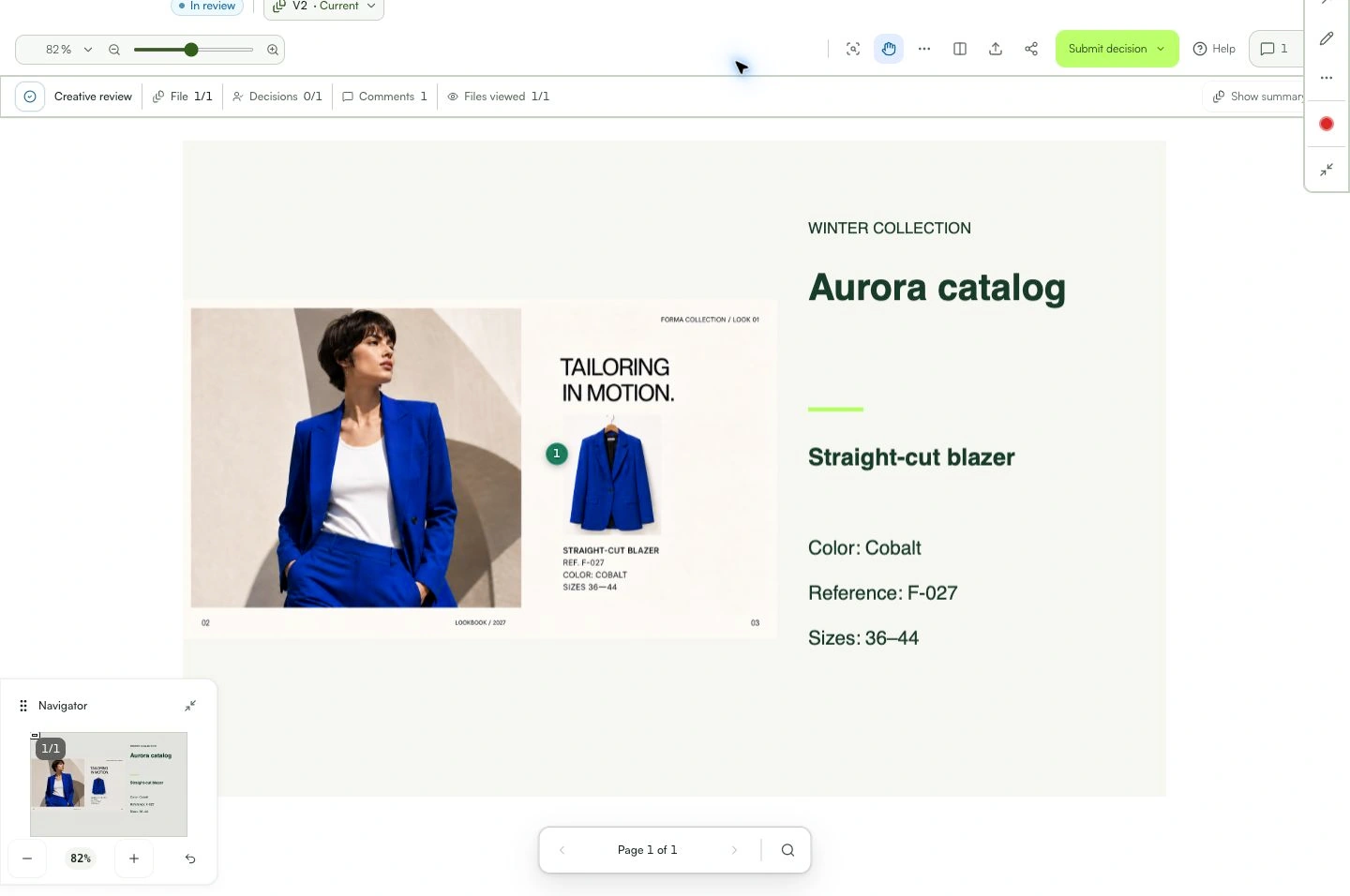
Search highlights matches and takes you to the selected result.
Check these details
What do I need before I start?
- A PDF review you can view.
How do I know I’m done?
Search highlights matches and takes you to the selected result.
Something didn’t work. What should I check?
- Search depends on text available in the PDF. Scanned images or outlined text may not be searchable.
- Large PDFs may require loading the original to use text tools.
- If search is unavailable, try loading the PDF again.
- Document search is separate from the comment filter.
Continue your review
PDF text search
Find words in a document and move between matches without checking each page.