

PDF review
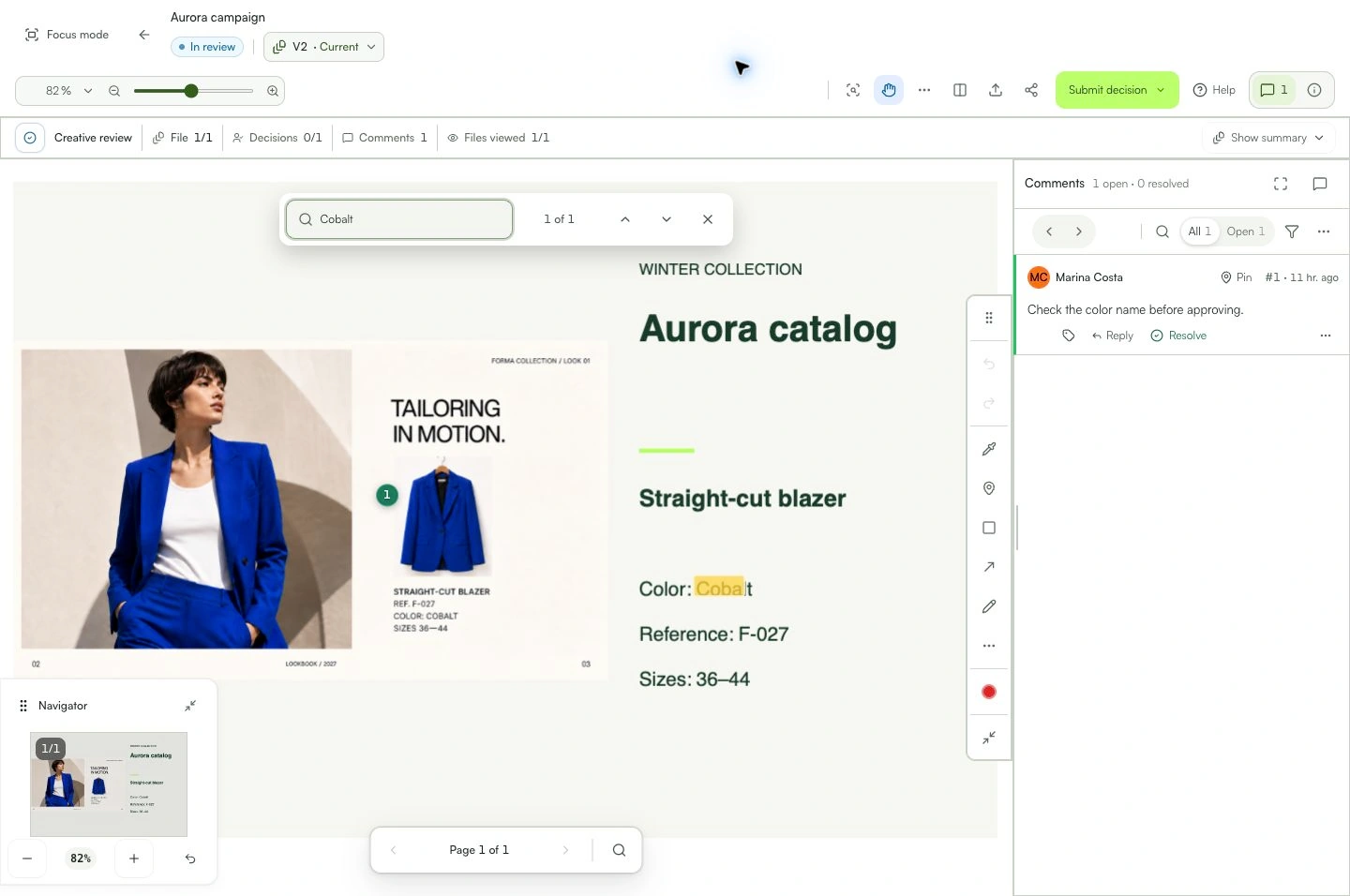
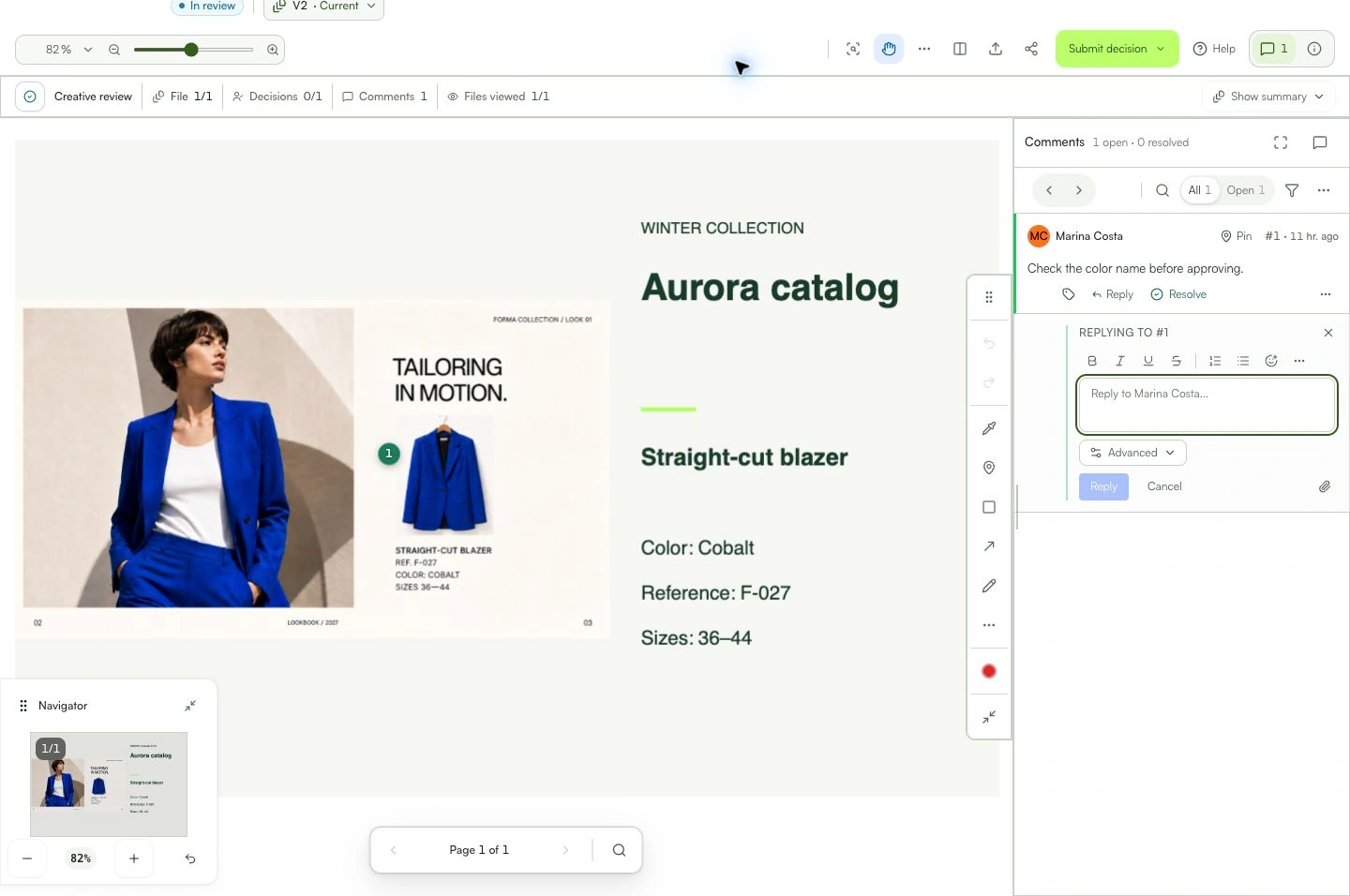
Leave feedback on the exact page and location in the document.
Opening the comment returns to the same location in the PDF.

Learn with an example
One action at a time.
Leave feedback on the exact page and location in the document.
Step 1
Confirm the file and version. Use Previous page and Next page to reach the relevant section.
Step 2
On desktop, Navigator shows the current page thumbnail even when the whole page fits on screen.
Step 3
Zoom in on the detail. With the page enlarged, drag in the thumbnail to move the visible area; Fit to screen returns to the overview.
Step 4
Select Point, Arrow, or Rectangle and mark the relevant part of the page.
Step 5
Write and post the comment. Reopen it to check its page, position, and version.
What you can do
Opening the comment returns to the same location in the PDF.
Check these details
What do I need before I start?
- A processed PDF open on the correct version.
- Permission to comment.
How do I know I’m done?
Opening the comment returns to the same location in the PDF.
Something didn’t work. What should I check?
- Wait for processing before commenting.
- Confirm the page after using search or thumbnails.
- Comments from an older version remain attached to that version.
Continue your review
PDF review
Leave feedback on the exact page and location in the document.