

Internal review
Work with your team without giving clients or guests access or triggering webhooks too early.
Your team works on a private version.
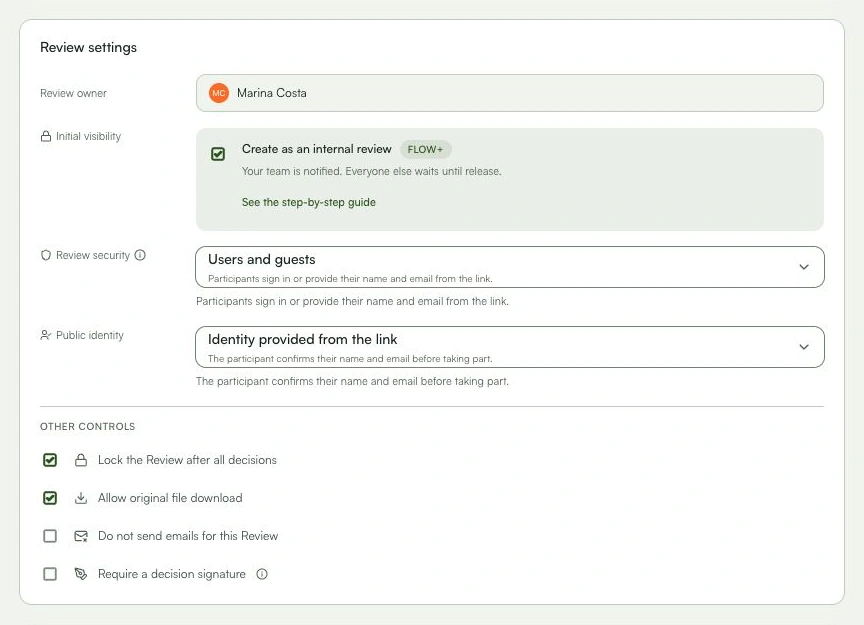
Learn with an example
One action at a time.
Work with your team without giving clients or guests access or triggering webhooks too early.
Step 1
Use an internal review when your team still needs to check creative, copy, brand, legal, or production details before involving the client.
Step 2
Open “New review”, upload the file, give it a clear name, and choose the project.
Step 3
Open “Stages and participants”, scroll to “Review settings”, and select “Create as an internal review”.
Step 4
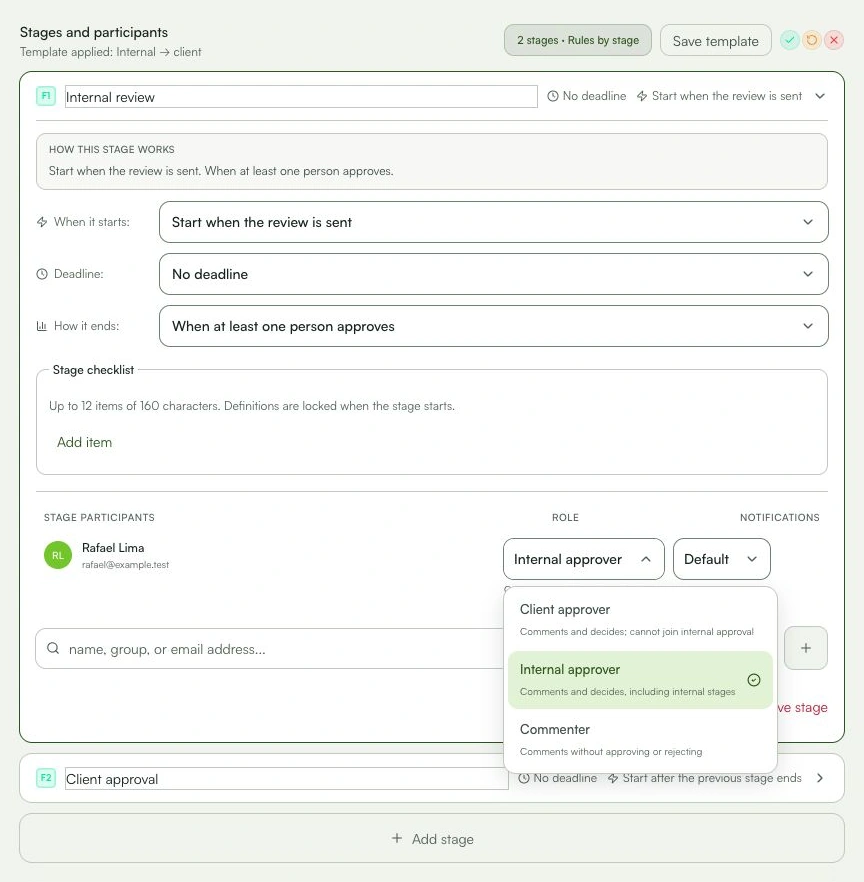
Add the team members who will do the first check. Clients and guests may stay in later stages: they will only get access after release.
Step 5
Review the stages, rules, deadlines, and notifications. A stage named “Internal review” organizes the workflow, but only internal visibility blocks external access.
Step 6
Select “Send for internal review”. Only internal members are notified; public links, guests, external emails, and webhooks remain on hold.
Step 7
Comment, place markers, and submit decisions as usual. If changes are needed, upload another version and select “Internal team only” before saving it.
Step 8
When the work is ready for the client, open version history and select “Release”. The version becomes available to external reviewers and pending notifications are sent.
Step 9
Open the client link or confirm access with an external reviewer before closing the internal stage.
What you can do
Your team works on a private version. Client access, email, and pending webhooks are released only after an authorized person publishes it.
Check these details
What do I need before I start?
- A Flow, Operations, or Custom plan.
- An Owner, Administrator, or Member role to create the review.
- To release a version: be an Owner, Administrator, the review creator, or have permission to upload versions in the project.
How do I know I’m done?
Your team works on a private version. Client access, email, and pending webhooks are released only after an authorized person publishes it.
Something didn’t work. What should I check?
- The option is missing or disabled: confirm that the workspace is on a Flow, Operations, or Custom plan.
- The client cannot open the version: this is expected while it is marked as internal.
- Naming a stage “Internal review” does not block the client on its own. Also select internal visibility for the version.
- The “Release” button is missing: confirm that you manage versions for this review or have upload permission in the project.
- After release, external access, pending emails, and the new-version webhook become active. Check participants and integrations first.
Continue your review
Internal review
Work with your team without giving clients or guests access or triggering webhooks too early.