

Client experience
Learn how to open an invitation, comment and decide with your assigned permissions.
You participate in the shared review without administering the workspace.
Learn with an example
One action at a time.
Learn how to open an invitation, comment and decide with your assigned permissions.
Step 1
Open the original invitation. If prompted, confirm access with the code sent to your email.
Step 2
Check the file, version and review stage before commenting.
Step 3
Use comments to mark what needs changing. Available actions depend on your role.
Step 4
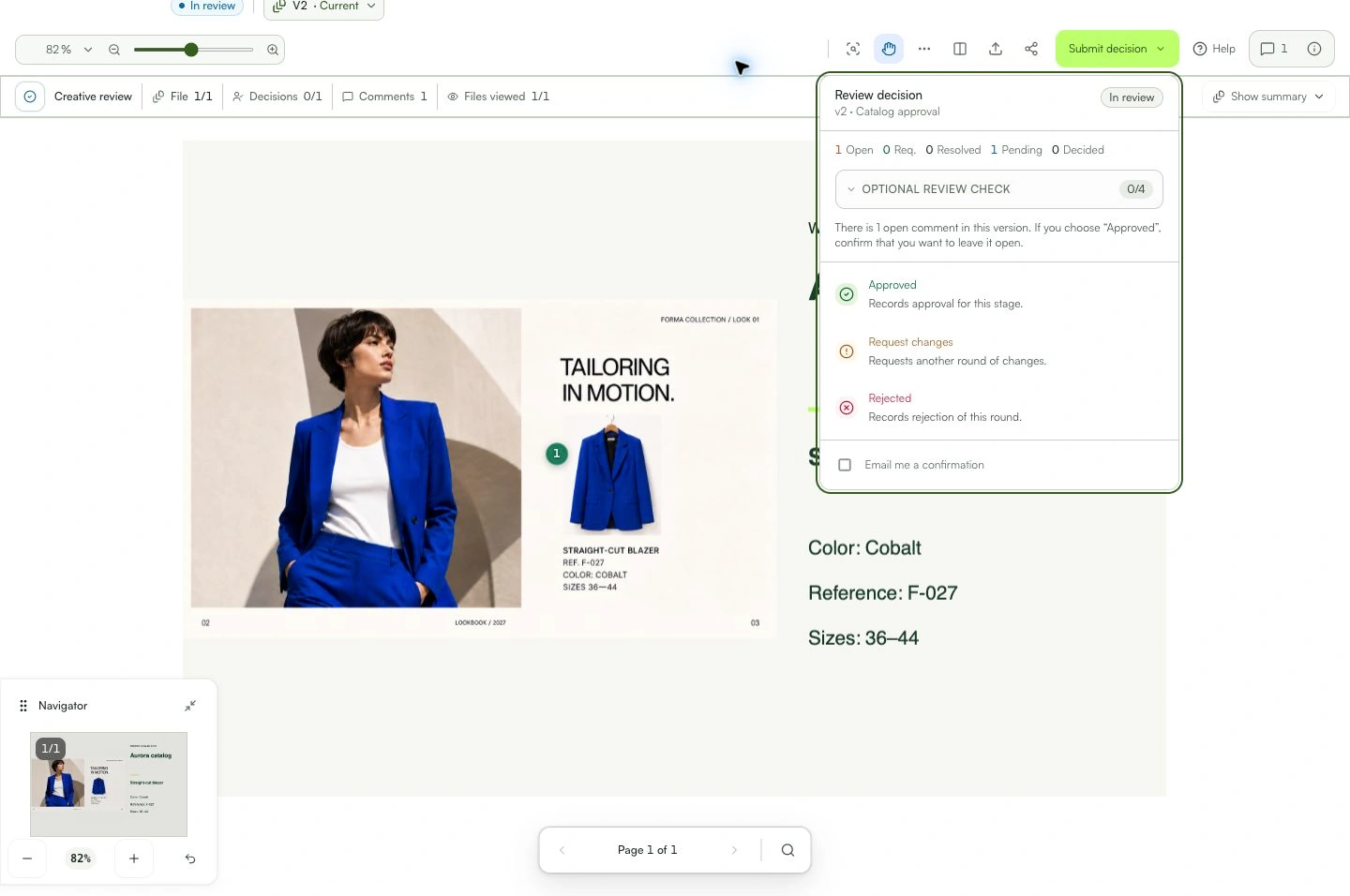
If you can decide, record approval or a change request on the current version.
Step 5
You only see content released for your access; the invitation does not grant access to internal workspace areas.
What you can do
You participate in the shared review without administering the workspace.
Check these details
What do I need before I start?
- A review invitation addressed to your email.
How do I know I’m done?
You participate in the shared review without administering the workspace.
Something didn’t work. What should I check?
- If access needs confirmation again, reopen the original invitation and use the latest code.
- If you cannot decide, ask the sender whether you were invited to comment or approve.
- Older versions may be viewed, but comments and decisions belong on the current version.
Continue your review
Client experience
Learn how to open an invitation, comment and decide with your assigned permissions.