

Lighting in 3D review: inspect details and keep the context
Adjust light and background when reviewing 3D models. Learn when to change lighting, how to save the view and what the preview cannot establish.
Written by the Aproova product team from the review flows we build and test in the application.
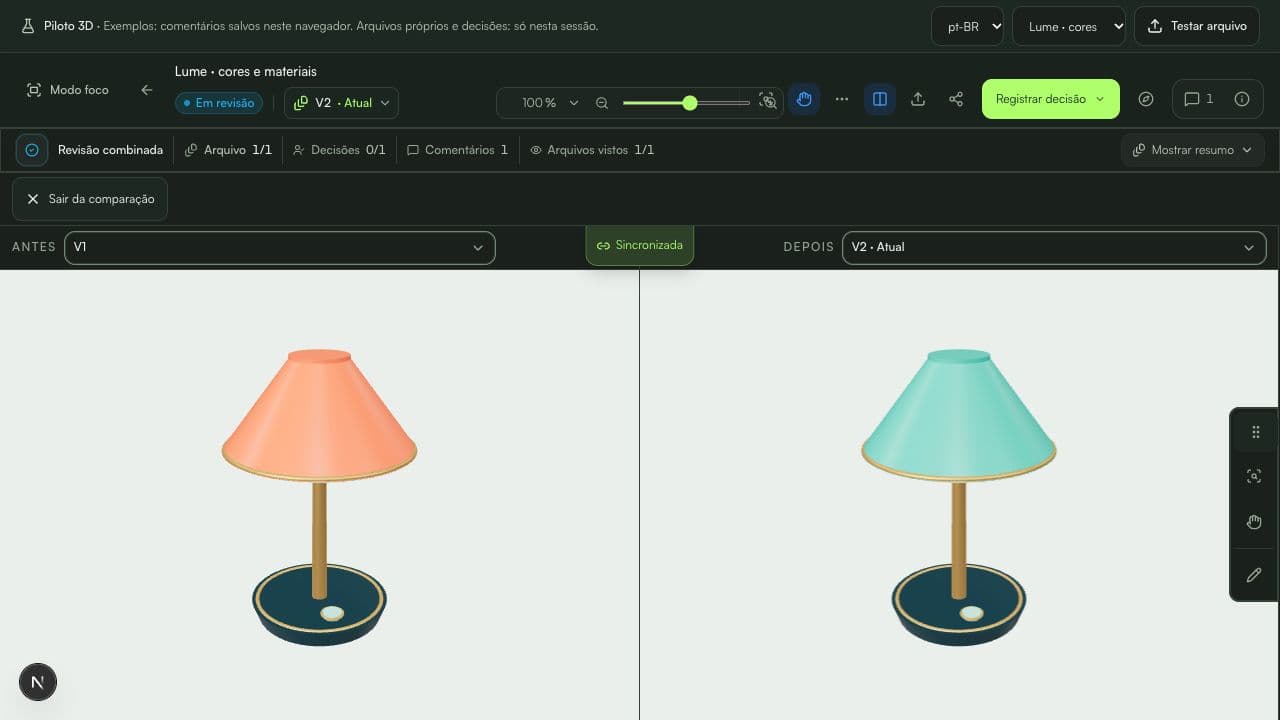
An edge can disappear in the glare of a frontal light. A cavity can look closed when it is entirely in shadow. Before requesting a geometry change, inspect the model under another light direction.
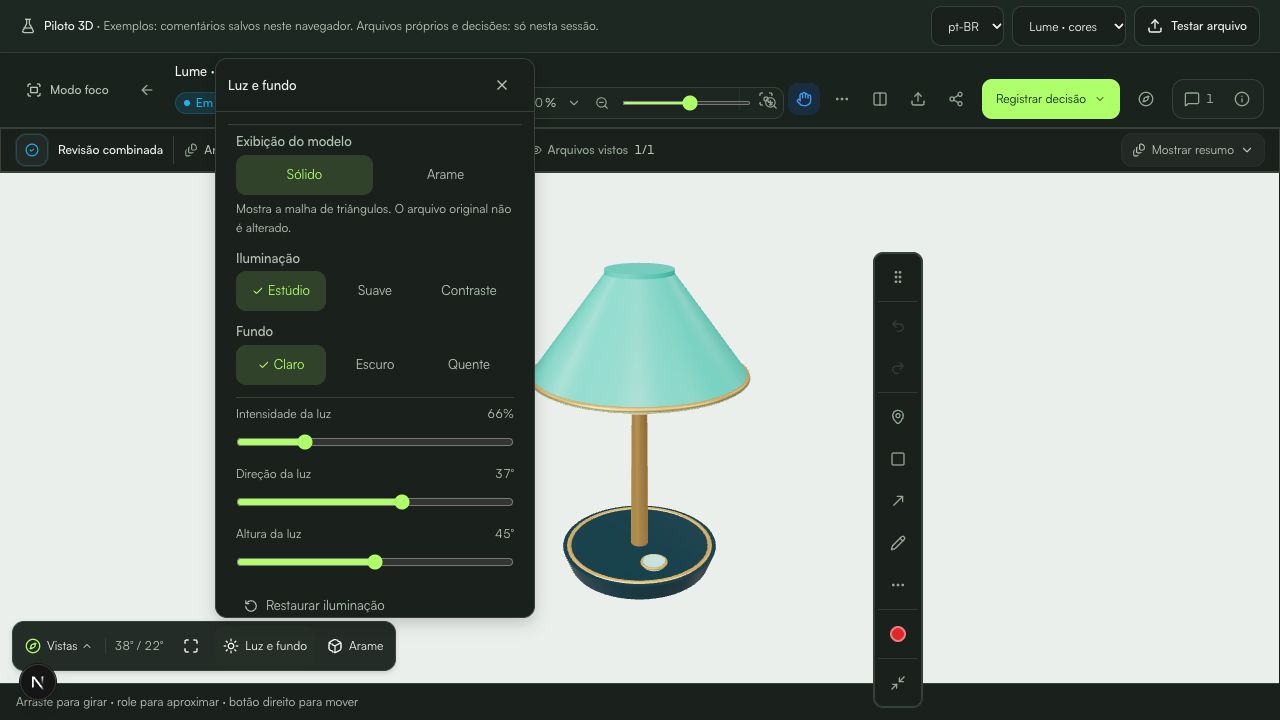
In Aproova’s 3D pilot, lighting and background live under Light & background beside Views in the 3D navigator. They change the preview while preserving the original file.
Start from a consistent viewing setup
Choose Studio, Soft or Contrast and a Light, Dark or Warm background. Agree on an initial appearance for the review round so participants share a reference before exploring other settings.
STL and OBJ display with neutral material. If the discussion depends on texture or color, use a self-contained GLB. Changing the background cannot recover materials missing from the file.
Change one variable at a time
Intensity ranges from 25% to 200%, direction from −180° to 180°, and elevation from 0° to 90°. Start with direction to reveal the edge, then adjust elevation and intensity. These are preview controls, not physical lamp specifications.
Rotate the model to see whether the issue remains visible. If a detail disappears only under an extreme setting, describe that in the comment. Reset lighting restores the default light and keeps the chosen background.
Save the light with the request
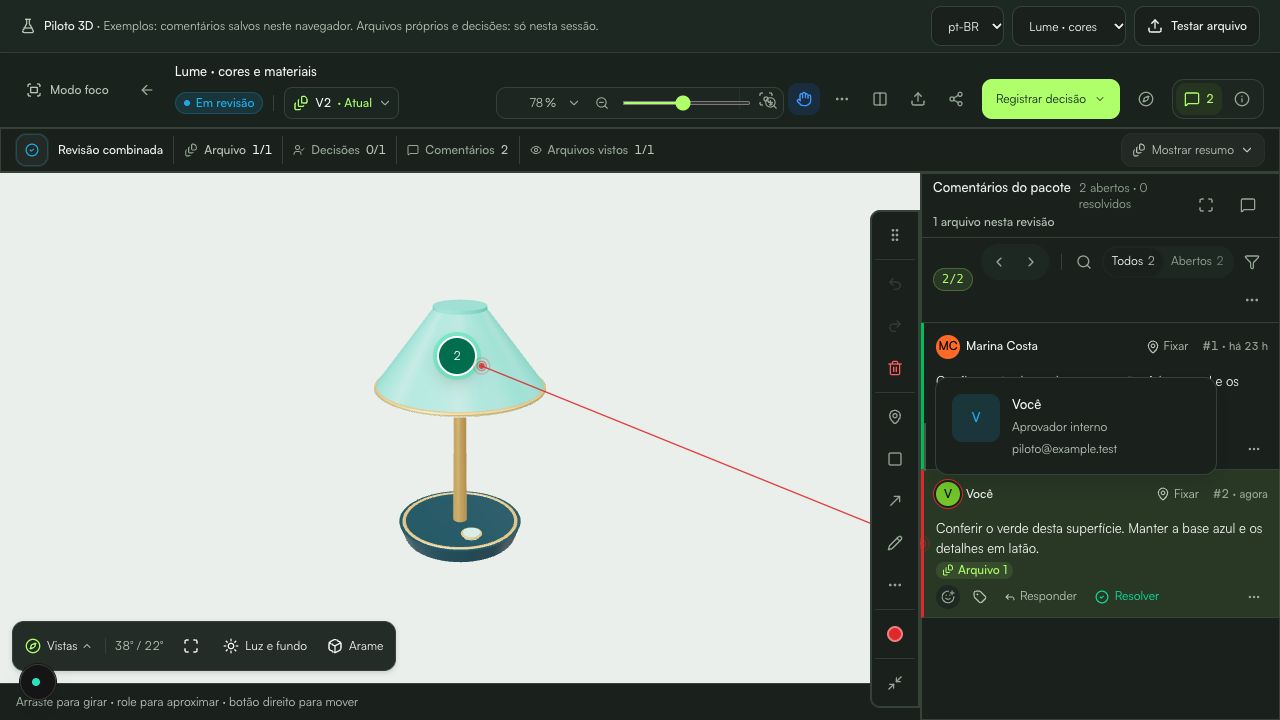
Set the view before creating a markup and posting the comment. Position, camera and appearance are recorded. For existing markup, use Save current view while editing, then save the markup.
When you return to the comment, Aproova restores the recorded view. The report capture uses that appearance so the recipient sees the request’s context. Briefly changing the light without saving a markup does not create a review record.
Separate visual review from production validation
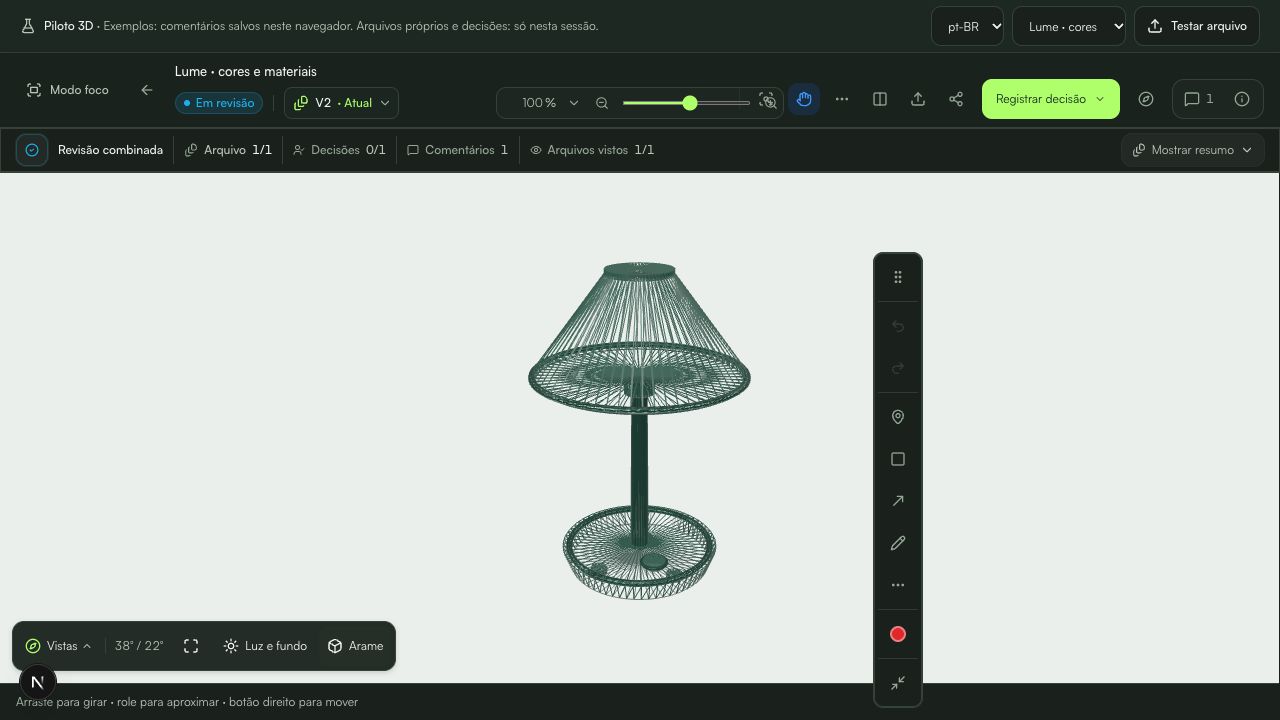
Light and background help inspect the model. The preview does not certify physical color, finish, dimensions or tolerances. Keep the necessary technical checks and physical samples in your manufacturing process.
When approving, state the scope, such as visual composition and element placement. This prevents a visual approval from being read as clearance of every manufacturing requirement.
Continue with these guides
3D review: from a GLB, FBX, STL or OBJ file to approval
Review a 3D model in Aproova: mark details, comment, compare versions and record the decision within the team’s existing workflow.
Read guide
Two approvers disagree about the same artwork. How to move the review forward
One approver requests a change and another asks for the opposite. Record the conflict, identify who decides and avoid creating a version based on guesses.
Read guide
The client approved the artwork, then requested a change. Which decision applies?
Handle a change requested after approval, identify the authorized version and record a new decision without losing the history.
Read guide