

3D review: from a GLB, FBX, STL or OBJ file to approval
Review a 3D model in Aproova: mark details, comment, compare versions and record the decision within the team’s existing workflow.
Written by the Aproova product team from the review flows we build and test in the application.
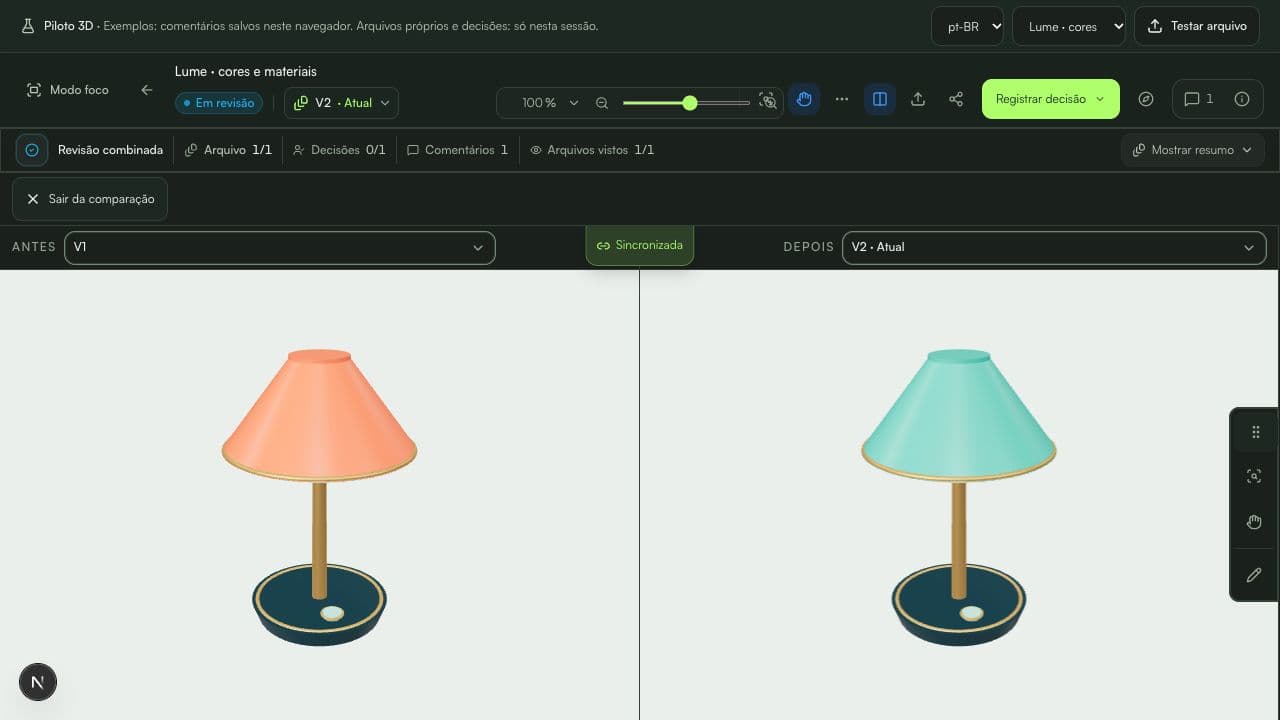
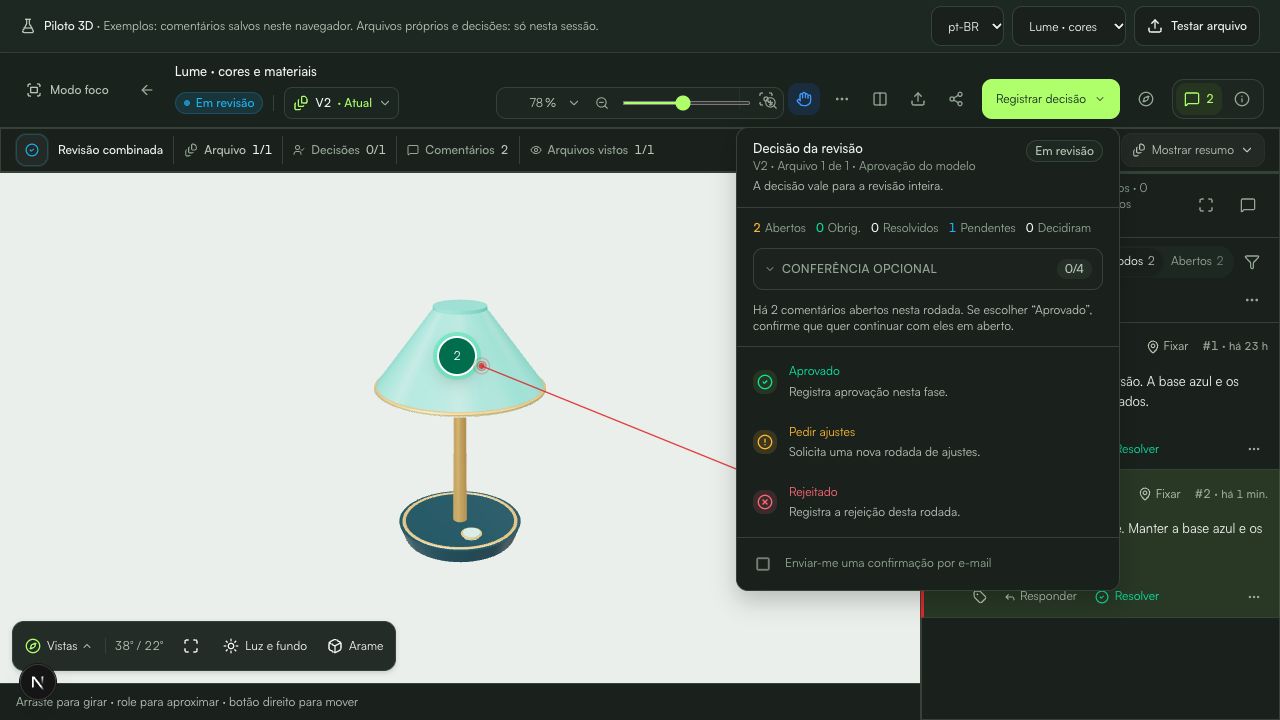
“Fix that side” leaves the modeler with two questions: which side, and seen from where? A rendered image may not show the back at all. In Aproova’s 3D pilot, the team can rotate the model and connect the request to the point or area that needs work.
Models use the same review flow as other files. Comments, versions and approval stay with the work, under each participant’s permissions.
Prepare the file for review
Use a self-contained GLB to inspect geometry, colors and textures. STL and OBJ let you review geometry with a neutral material. The pilot accepts up to 50 MB and 1 million triangles, also subject to the plan limit.
Export BLEND and native CAD files to a supported format. GLB with Draco, KTX2 or external references is not yet supported. Open the exported file before inviting the client so a format problem does not interrupt the review.
Binary or ASCII FBX (versions 7.0 to 7.7) is also supported. Embed PNG, JPEG or WebP textures. Review shows the initial pose; it does not play animations. Renderer-specific materials may look different in the preview.
Write a request someone can act on
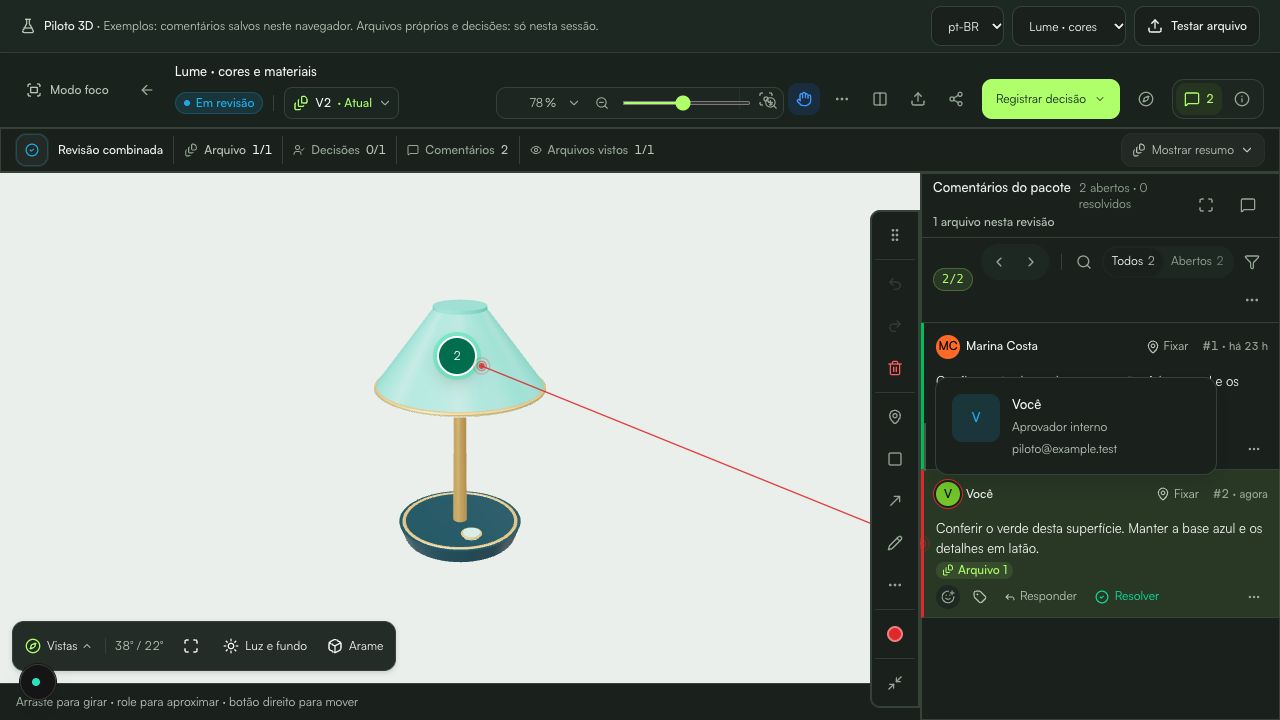
Rotate to the detail and use a point, arrow, rectangle, ellipse, line or freehand markup. “Reduce this edge so it aligns with the side face” identifies both the region and the intended result. “I don’t like it” does not give the same direction.
A markup stores the position, view and model appearance. Opening the comment restores that context. Edit and save your own markup to correct it; undo and redo apply to the draft currently being edited.
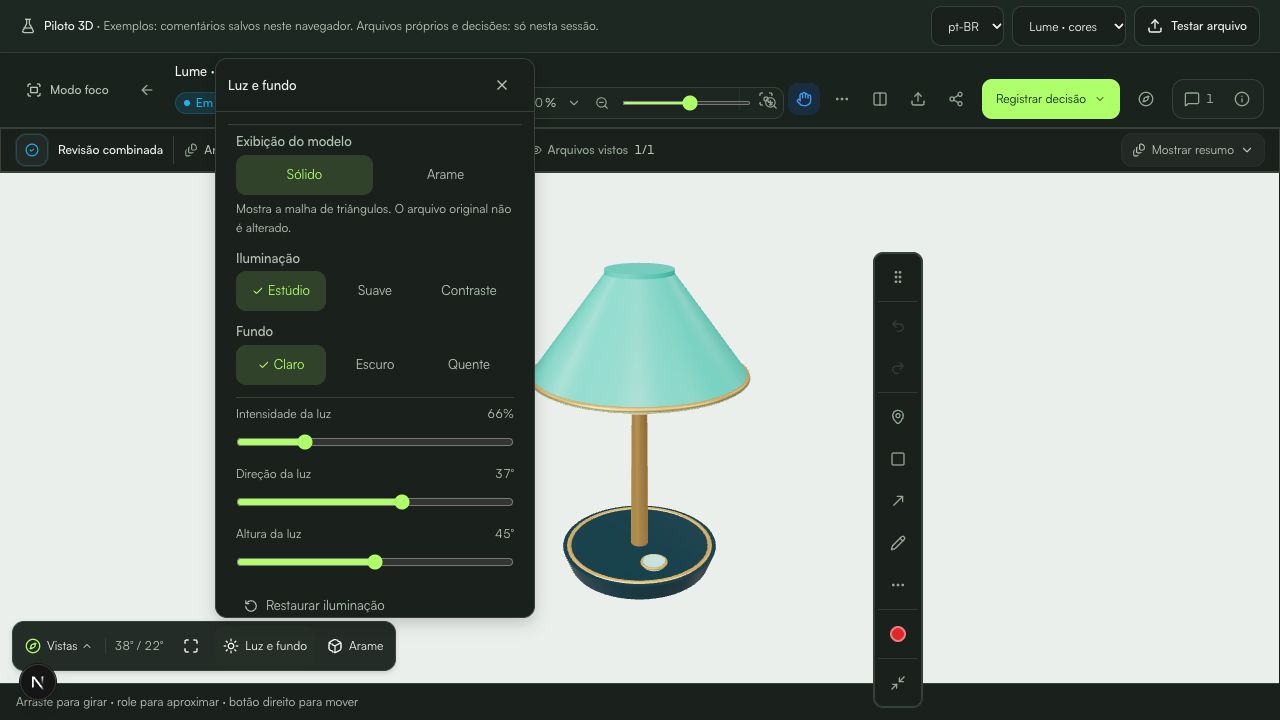
Light and wireframe: inspect the detail before requesting a change
Open Light & background beside Views below the model. Choose a preset and background, then adjust intensity, direction and elevation. Moving the light can reveal an edge hidden by a reflection.
Turn on Wireframe to inspect the triangle mesh, then return to Solid to check the finish. A saved markup can retain the view and appearance while the original file stays unchanged.
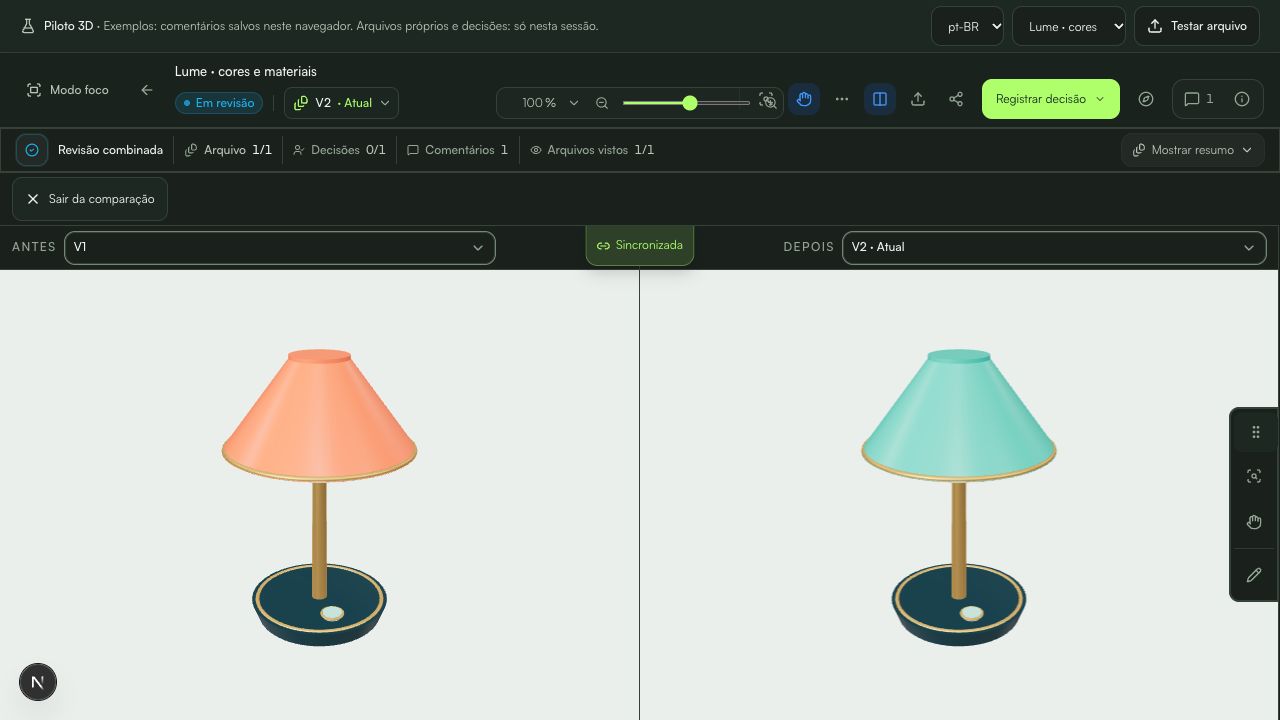
Compare the update before approving
Add the new version to the existing review and check the original request. Compare side by side, with an overlay or with visual differences. Rotate the model: a front view does not reveal a change at the back.
Comparison supports visual checking; it does not measure manufacturing deviations. Verify dimensions, units and tolerances in the technical software and with the production team.
Record the decision and include the context in the report
On the current, unlocked version, authorized participants can approve or request changes. Guests follow the review’s access rules; sharing a link does not make everyone an approver.
The report for the selected file and version includes 3D captures of exported markups. It helps pass on feedback with its recorded view, but does not replace the original model or technical checks.
Continue with these guides
Lighting in 3D review: inspect details and keep the context
Adjust light and background when reviewing 3D models. Learn when to change lighting, how to save the view and what the preview cannot establish.
Read guide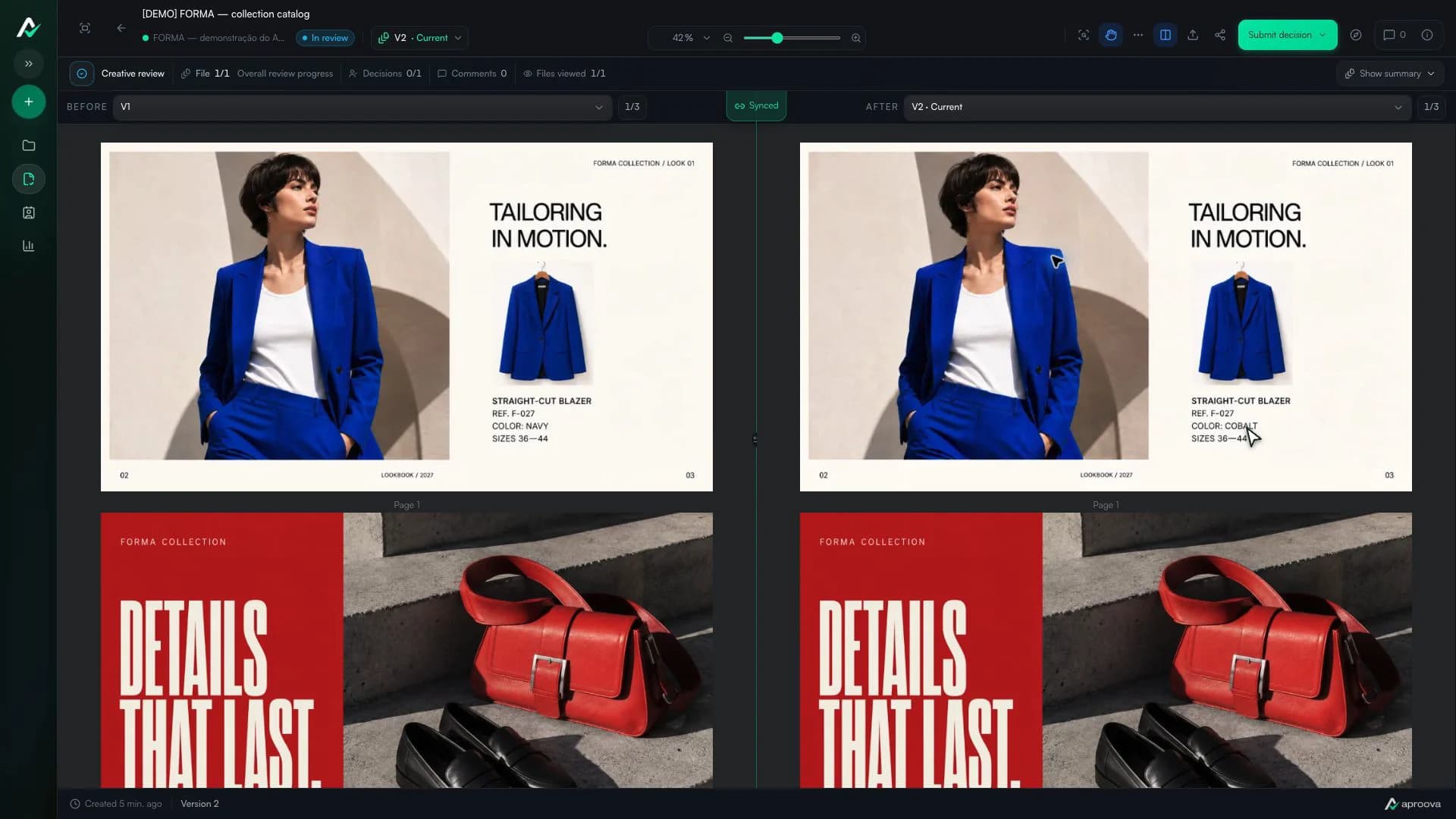
How to compare creative versions without relying on memory
Use side-by-side and overlay comparison to check changes before approving the final artwork.
Read guide
Approval platforms: language, client access and purchasing terms
Assess language, client access, versions, history and purchasing terms before choosing an approval platform.
Read guide