

Member management
Update a person's role or safely remove their access.
The new role takes effect or access is revoked without deleting historical comments and decisions.
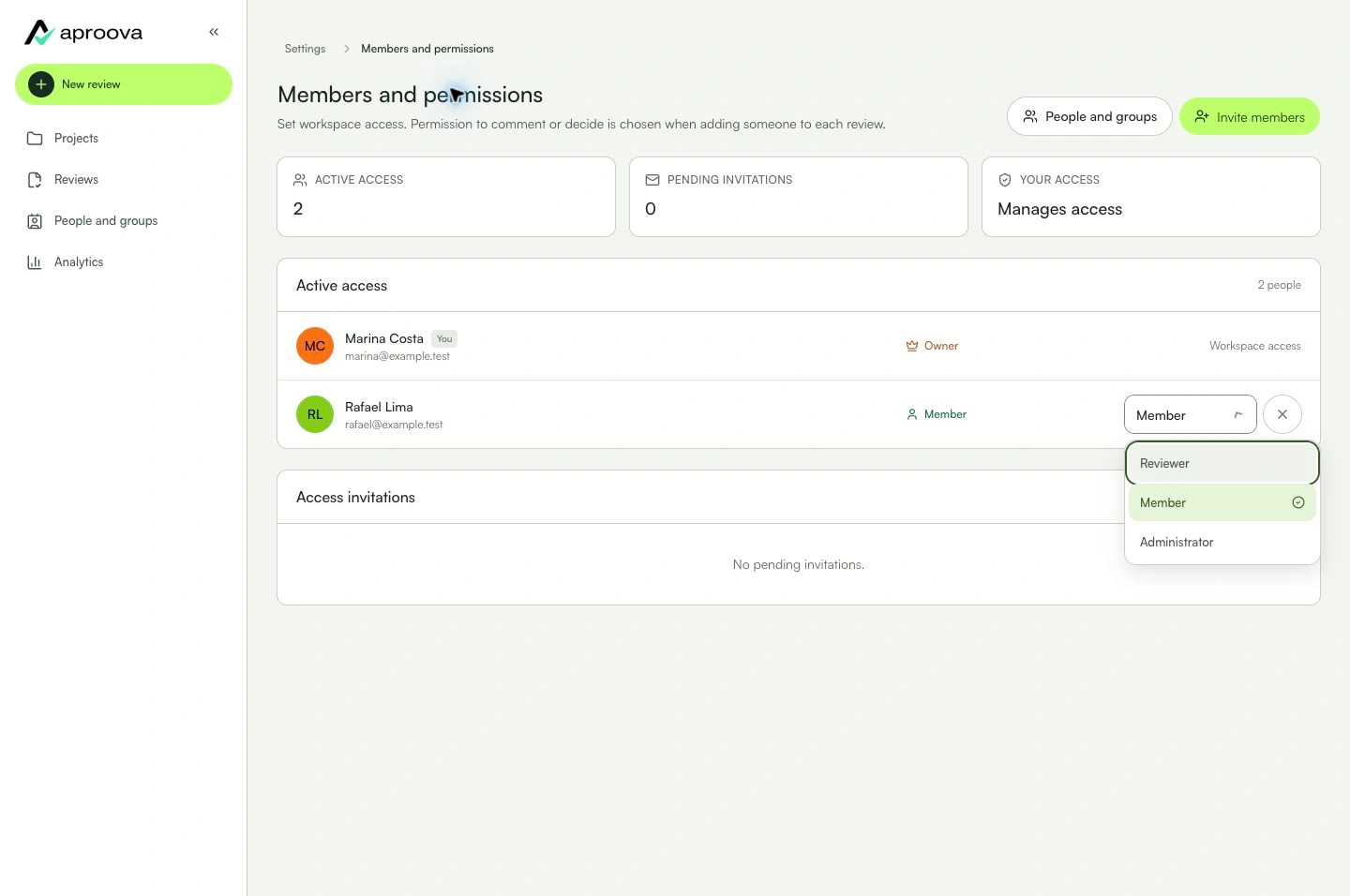
Learn with an example
One action at a time.
Update a person's role or safely remove their access.
Step 1
Open Settings and go to Members.
Step 2
Find the person or pending invitation.
Step 3
To adjust access, choose the new role and confirm.
Step 4
For a pending invitation, use revoke.
Step 5
For an active person, use remove and review the effects before confirming.
Step 6
Check that restricted projects, groups, and stages still have the right participants.
What you can do
The new role takes effect or access is revoked without deleting historical comments and decisions.
Check these details
What do I need before I start?
- Owner or admin role.
- An active person or pending invitation in the workspace.
How do I know I’m done?
The new role takes effect or access is revoked without deleting historical comments and decisions.
Something didn’t work. What should I check?
- The owner cannot be removed or downgraded.
- Removing access revokes future participation but keeps history.
- Promoting someone to Admin grants people, billing, and settings management.
Continue your review
Member management
Update a person's role or safely remove their access.